




1. Enhanced List Widget: Filter and Navigate Seamlessly in CRM Analytics Summer ’25
You can now configure the list widget to filter data and navigate to another page or dashboard. This eliminates the need for a separate link widget, streamlining the dashboard creation process.
Feature Availability and Usage: List Widget Navigation
Availability:
This feature is available in CRM Analytics for both Lightning Experience and Salesforce Classic. CRM Analytics is included in the Developer Edition and offered as an add-on for Enterprise, Performance, and Unlimited
How to Use:
To enable navigation:
- Edit an existing list widget or add a new one to your dashboard.
- Click the widget and select Create Interaction > +Add Action.
- Configure the destination page or dashboard for seamless navigation.
Example:
Use the Opportunity Stage field as a filter to drive navigation between dashboards.
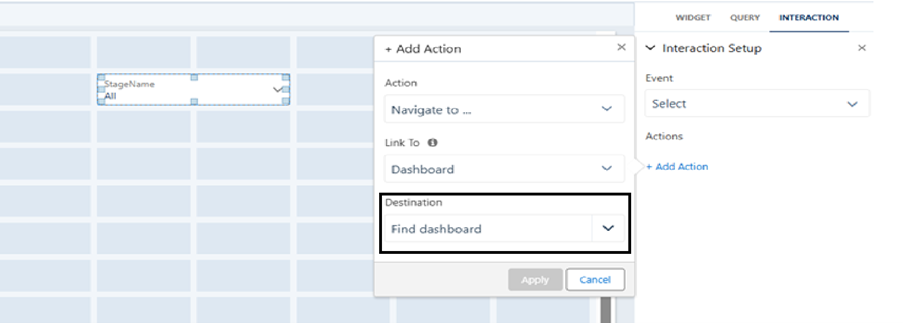
Here, you can choose the target dashboard where this filter should be applied
2. Add Custom Headers and Enable Sorting in the Repeater Widget
You can now enhance the repeater widget by adding custom headers, eliminating the need for workarounds like placing a separate text widget above it. Additionally, these headers can be configured to sort your data, offering more control over how information is displayed.
Feature Availability and Usage: Custom Headers and Sorting in Repeater Widgets
Availability:
This feature is available in CRM Analytics for both Lightning Experience and Salesforce Classic. It’s included in Developer Edition and offered as an add-on for Enterprise, Performance, and Unlimited
How to Use:
To add a custom header and enable sorting:
- Edit an existing repeater widget or create a new one.
- Click Add Header, then drag a text widget into the header area.
- Enter the desired column name in the text widget.
- Click Done to apply the changes.
Example:
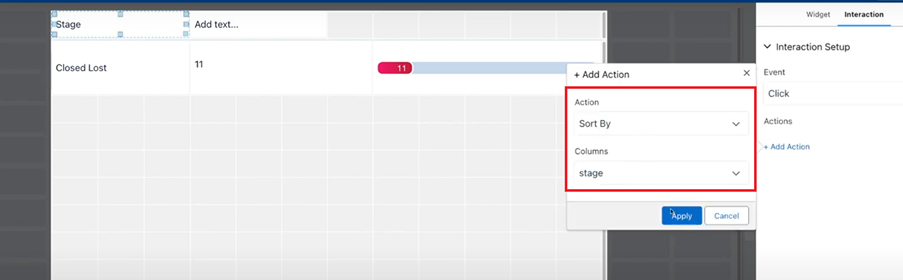
In this example, the Stage field is used to enable sorting within the repeater widget.
3. Enhance Data Understanding with Custom Tooltips in Table Widgets
You can now add custom tooltips to columns in the table widget, offering users helpful context such as calculation methods, term definitions, or data sources. These tooltips improve data clarity and promote transparency by making complex information easier to understand.
How to Use: Add Custom Tooltips in Table Widgets
To enhance data clarity, you can now add custom tooltips to columns in the table widget. These tooltips can provide helpful context such as definitions, calculation methods, or data sources.
Steps to Add a Tooltip:
- Open the dashboard in edit mode.
- Select a table widget.
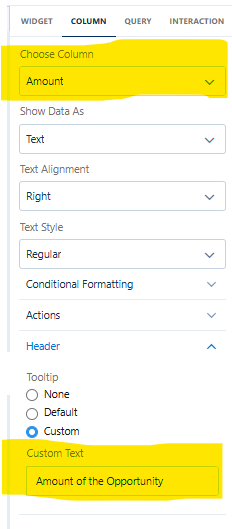
- Navigate to the Column tab and choose the column you want to customize.
- Assign a custom name to the column.
- Before entering your tooltip text, ensure the correct column is selected.
- Note: By default, the tooltip displays the Amount. You can override this with your own custom text to better suit your data context.

4. Seamless Filtering and Navigation with the Toggle Widget
The toggle widget now supports integrated navigation, enabling users to filter data and navigate to another page or dashboard with a single click. This enhancement consolidates functionality into one component, eliminating the need for a separate link widget and streamlining the dashboard-building process.
How to Use It: Configuring Navigation with the Toggle Widget
To set up navigation using the toggle widget:
- Open your dashboard in edit mode.
- Select an existing toggle widget or add a new one to the dashboard.
- Click the widget, then go to Create Interaction > +Add Action.
- Define the destination page or dashboard where the toggle should navigate.
This setup allows users to filter and navigate with a single click, enhancing the interactivity and efficiency of your dashboard.
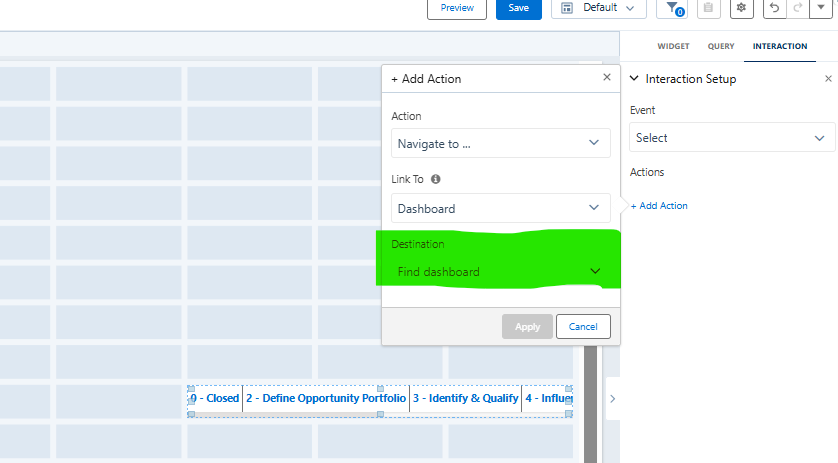
This intuitive setup enhances user experience and simplifies dashboard interactivity.




Ganesh Ega
Ganesh brings over 4+ years of expertise in CRM Analytics, with a strong background in Salesforce development. As a seasoned software developer, he has created numerous dashboards and solutions using Salesforce CRM Analytics. His passion for staying up-to-date with the latest enhancements and features drives him to continuously master new skills. Ganesh is dedicated to sharing his knowledge and expertise with others, empowering them to unlock the full potential of CRM Analytics