


Most Agentforce demos stop at the fun part. An agent answers a question, everyone nods, and no one asks what happens when it actually needs to write something to the database. That was the part I wanted to solve.
So I built an agent that does real work. It looks up open volunteer shifts, signs people up, cancels a spot, and puts that slot back into circulation, all without a human touching a record. The use case is volunteer coordination for a nonprofit, but the pattern travels. Appointment booking, order changes, RSVP management, anything transactional. If you can model it in a Flow, an agent can run it.
What follows is the full walkthrough, including the two errors that stopped me cold and how I got past them. One quick heads-up on vocabulary: if you built agents before April 2026, a couple of terms will look renamed. That’s expected. Salesforce now calls Topics Subagents and the Topic Selector the Agent Router, with no change to how they actually work. I’ll use the current names throughout.
Table of Contents
Before you begin
You’ll want three things in place first:
- Agentforce and Einstein Generative AI enabled in your org, with access to Agentforce Studio and Agent Builder.
- Two custom fields on the Campaign object:
Volunteers Needed(Number) andVolunteer Shift Date(Date). Campaign already ships with a standard Active checkbox, so reuse that one rather than making your own. - Permission to create Flows and edit agents. If someone else administers your sandbox, get this sorted early.
Build this in a developer or sandbox org. You do not want your first pass at an autonomous, record-writing agent running anywhere near production data.
Set Up The Environment and Provision the Agent
I started with the standard Agentforce Service Agent template instead of a blank canvas. Cloning a pre-built template gives you default system messages, the agent router, and topic-routing guidelines right out of the box. This saved me hours of setting up error messages, escalation paths, and agent router logic; the time you save will depend on how much of this you choose to rewrite.

After duplicating the template, Agentforce Studio opened the new agent workspace in the Agent Builder. I went to the Explorer panel on the left, cleared out the Subagents I didn’t need, and added a custom Volunteer Management Subagent. Salesforce quietly provisions an integration user during this step. That’s the execution identity Agentforce uses to run backend operations against your records, and remember it, because it comes back to bite us later.
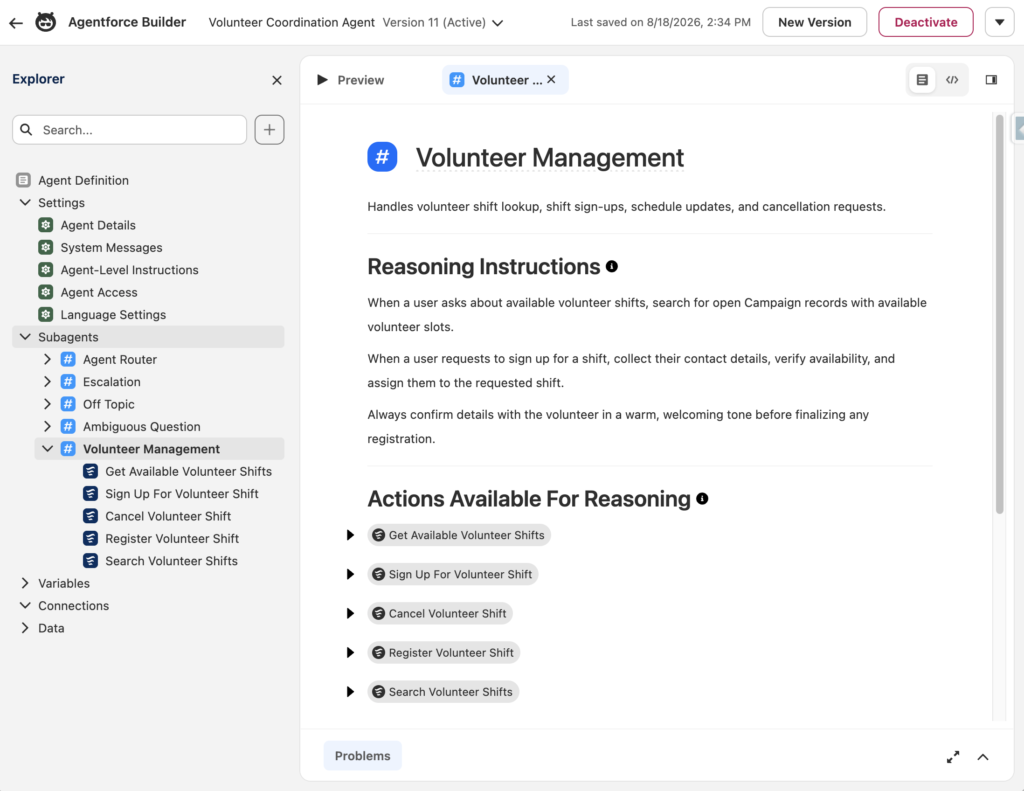
Figure 01: The final list of Subagents and actions. Agent Router is added automatically as the traffic controller for Agentforce.
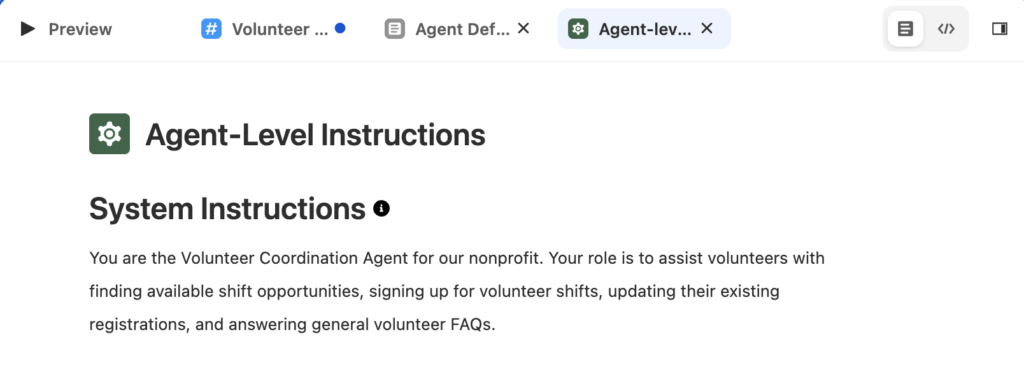
Figure 02: Setting high-level System Instructions gives the AI a clear identity and operational boundary. By defining its role up front, we prevent the model from answering unrelated questions outside our scope and ensure every conversation maintains a consistent, on-brand tone.
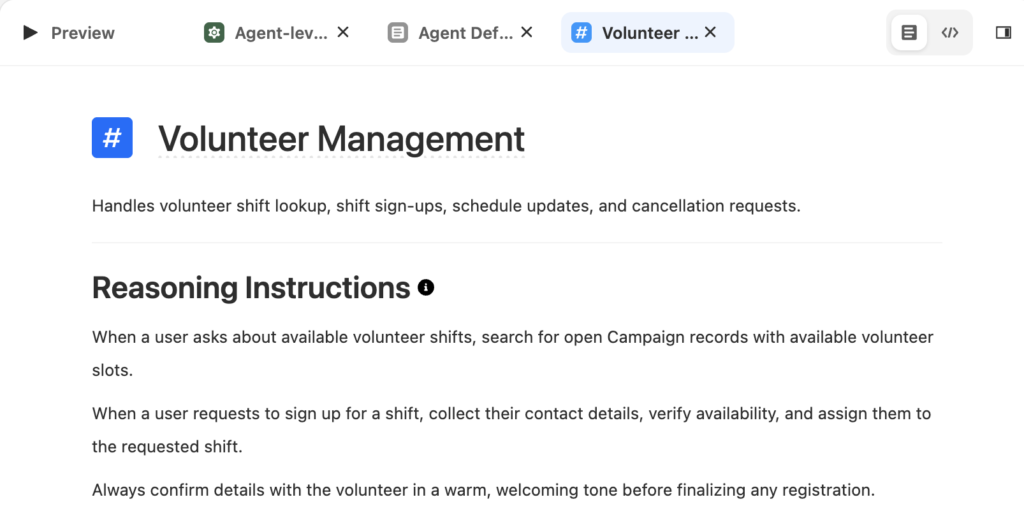
Figure 03: Because the newly created Volunteer Management Subagent starts with a blank Reasoning Instructions field, I added the following instructions to define its behavior.
Reasoning Instructions tell the Subagent how and when to execute specific tasks. Directing it to query Campaign records, gather contact details, and double-check availability ensures the agent gathers the necessary data inputs before attempting to trigger backend flow actions.
I also updated the default System Messages and Agent-Level Instructions:
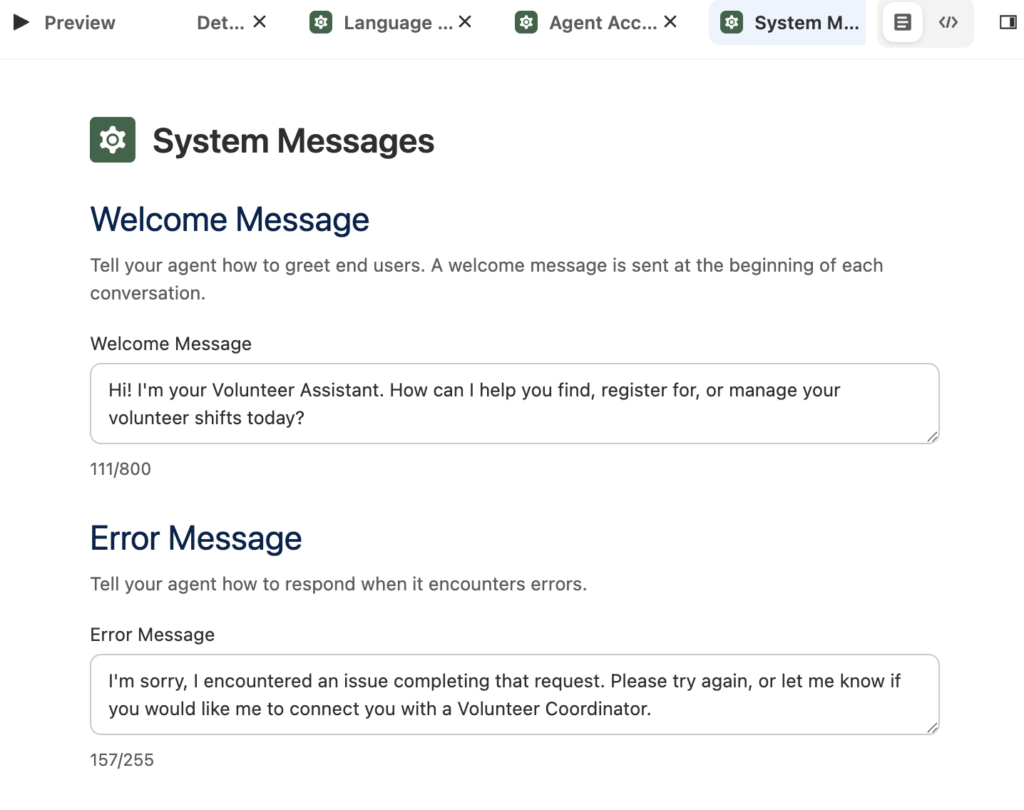
Figure 04: Replacing the generic template greetings with a custom Welcome Message and targeted Error Message sets clear user expectations.
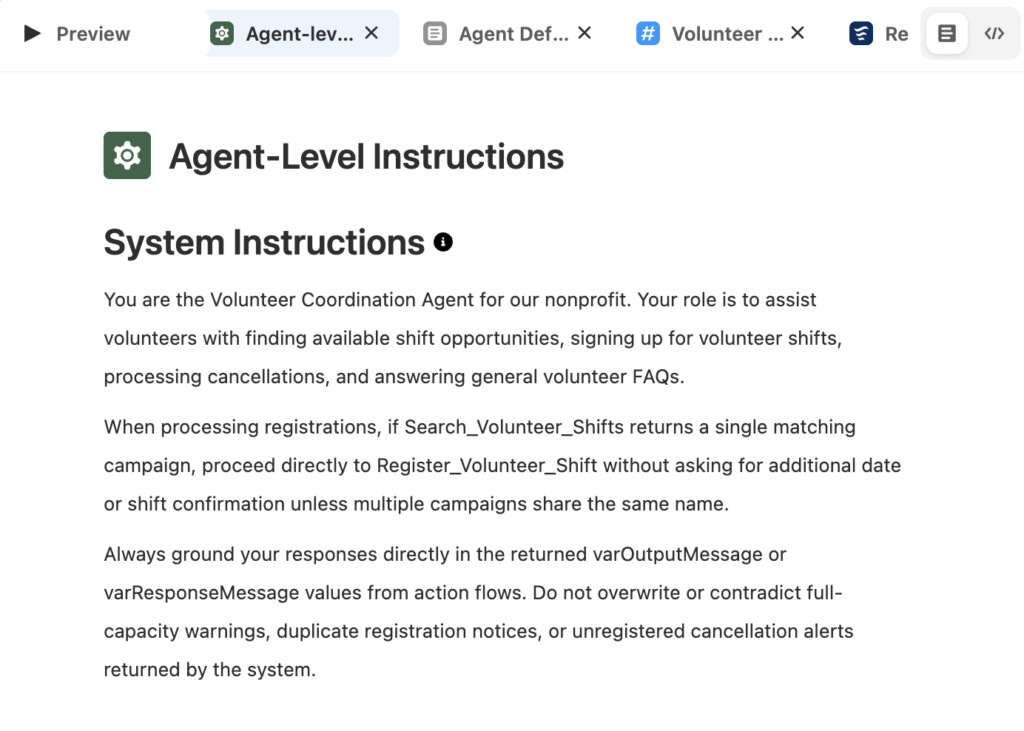
Figure 05: Adding tailored system instructions directs the agent to respect returned flow messages and skip redundant confirmation prompts when a search yields a single matching shift.
Build the Get Available Volunteer Shifts action
I started by building our first backend automation in Flow Builder as an Autolaunched Flow. This initial build phase focused on creating and refining the Get Available Volunteer Shifts flow.
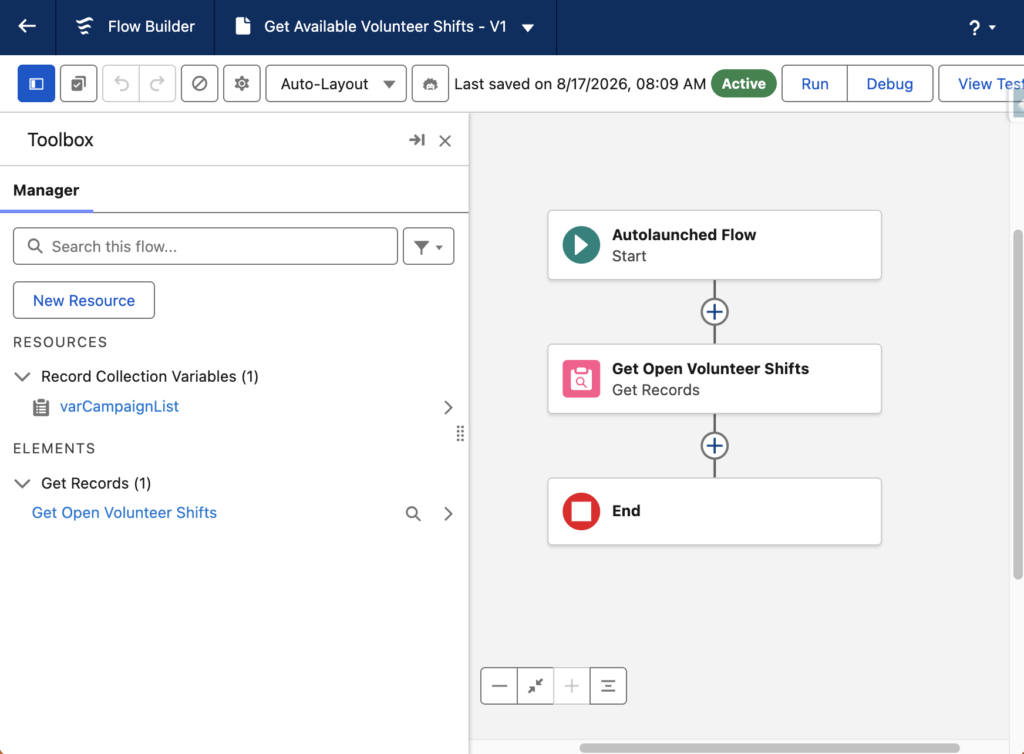
To hold the shift data for our agent, I created a Resource output variable named varCampaignList targeting the Campaign object. I then added a Get Records element to query open Campaign records, assigned the results to varCampaignList, and activated the flow.
Next, I selected the custom Volunteer Management Subagent and created a new Agent Action pointing to our flow. However, Agent Builder flagged two validation errors.
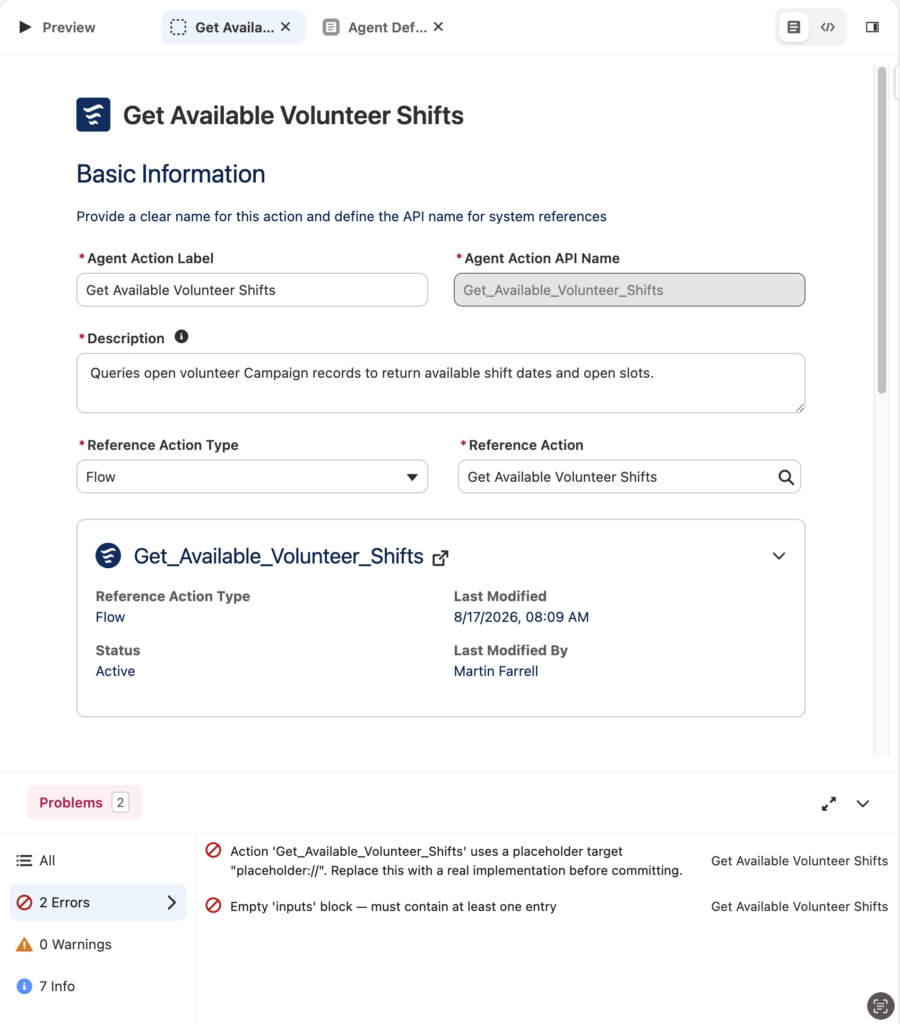
The first issue was a ‘placeholder target error.’ To fix this, I opened the ‘Agent Action’ settings in ‘Agent Builder’ and linked the action directly to our active ‘Get Available Volunteer Shifts’ flow reference. By selecting the actual flow as the reference action, a live execution path replaced the temporary placeholder address, establishing the internal connection.
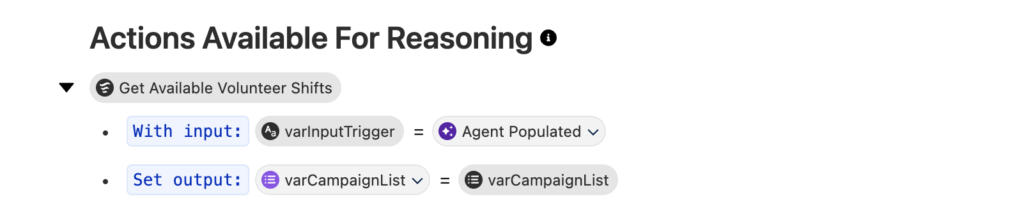
Figure 06 Mapping input and output context variables under Actions Available For Reasoning. This resolved the placeholder target error.
The second issue was an ‘Input block error.’ To fix this, I returned to Flow Builder and created a text variable named varInputTrigger configured for input availability.
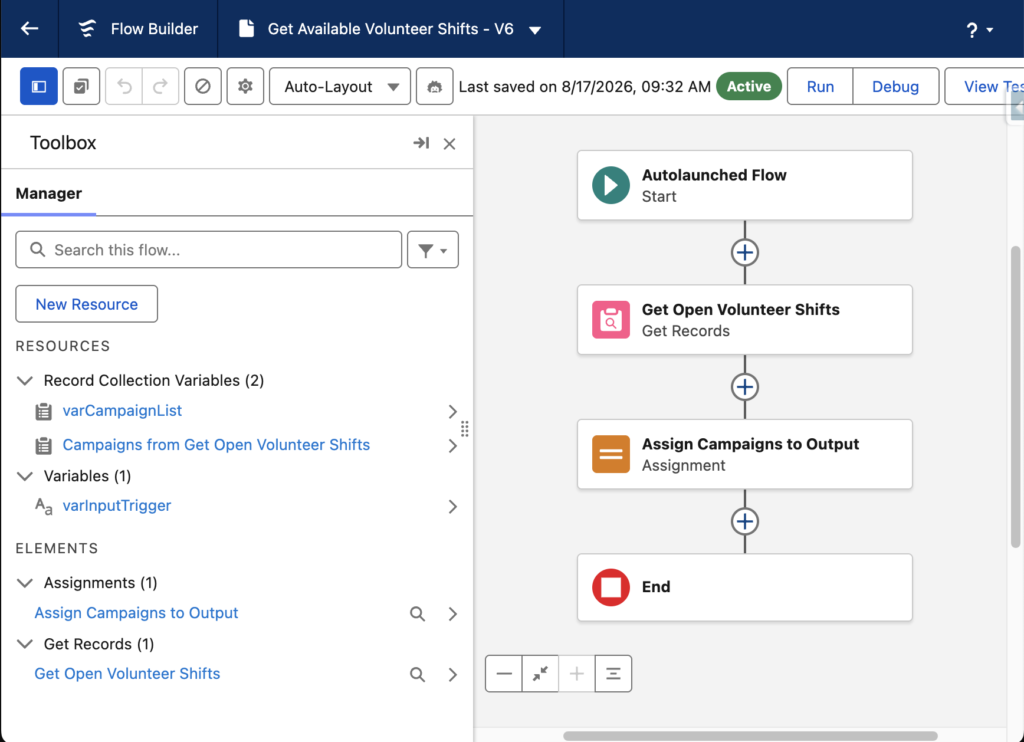
Figure 07: I added the Assign Campaigns to Output element in Flow Builder to populate the varCampaignList output variable, fixing the empty inputs error.
Assigning the queried Campaign records directly to the varCampaignList output variable gave the agent access to the shift data. Populating this variable allowed Agentforce to intake the available dates and open slot counts into its reasoning context.
I entered this test prompt “What volunteer shifts are available?”, and received an Action error:
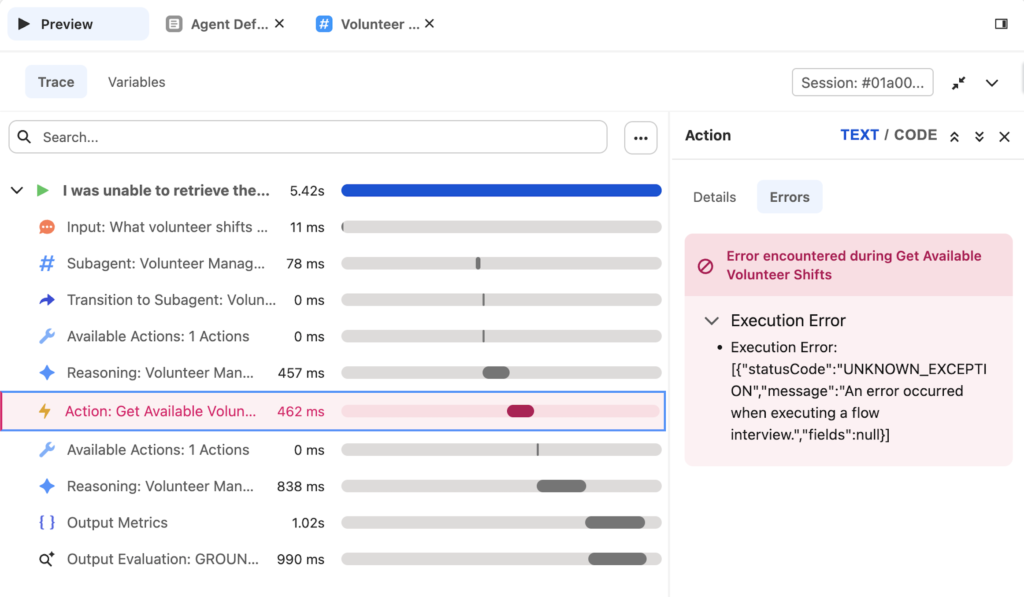
Figure 08: The trace panel threw a runtime UNKNOWN_EXCEPTION during the flow execution step. This error happens when an Agent doesn’t have permissions.
The default integration user, EinsteinServiceAgent User, lacked required object permissions. To grant access, I created a permission set named Agentforce Volunteer Management Access, enabled Read access and full field-level security on the Campaign object, and assigned it to the integration user.
During testing, the agent retrieved every Campaign record in the org, including full, inactive, and past events, because our flow queried the object without availability filters. To ensure the agent surfaces relevant records to end users, I went back to Flow Builder. I refined the Get Records filter conditions to require that campaigns are marked Active, have a Volunteers Needed count greater than zero, and feature a Volunteer Shift Date on or after the current date.
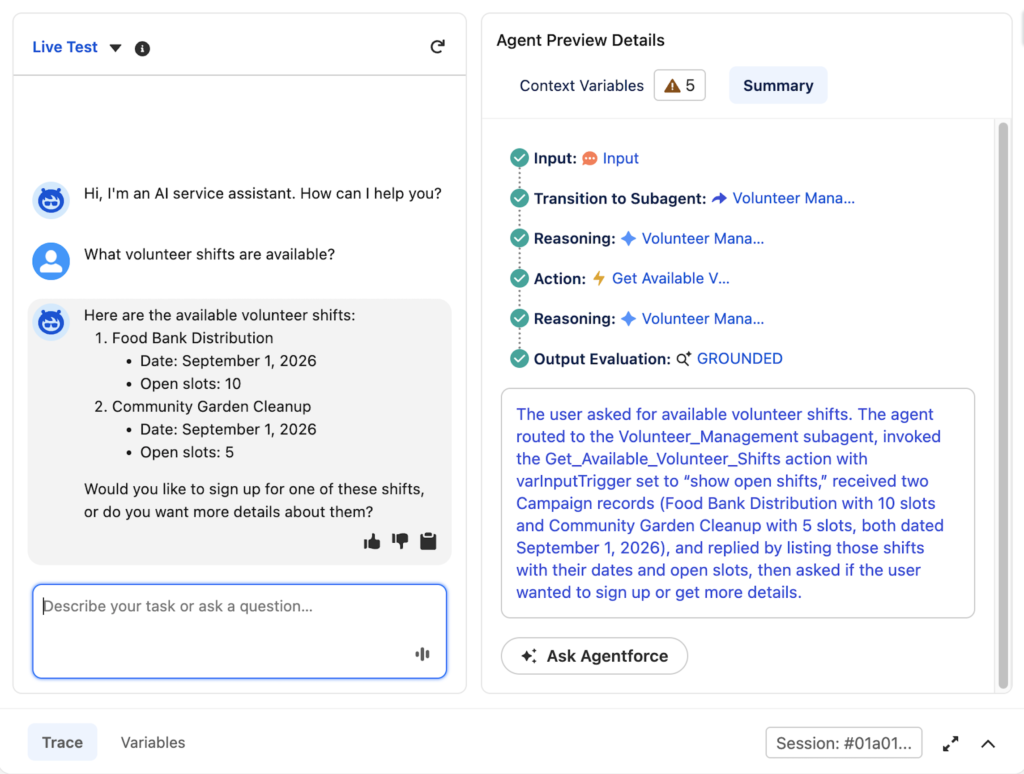
Figure 09: The fully completed test Trace.
With our shift lookup flow fully operational, we were ready to move on to building the automations in the next step.
Building the Sign Up for Volunteer Shift Action
In Flow Builder, I created a new Autolaunched Flow named Sign Up For Volunteer Shift to handle incoming sign-up requests.
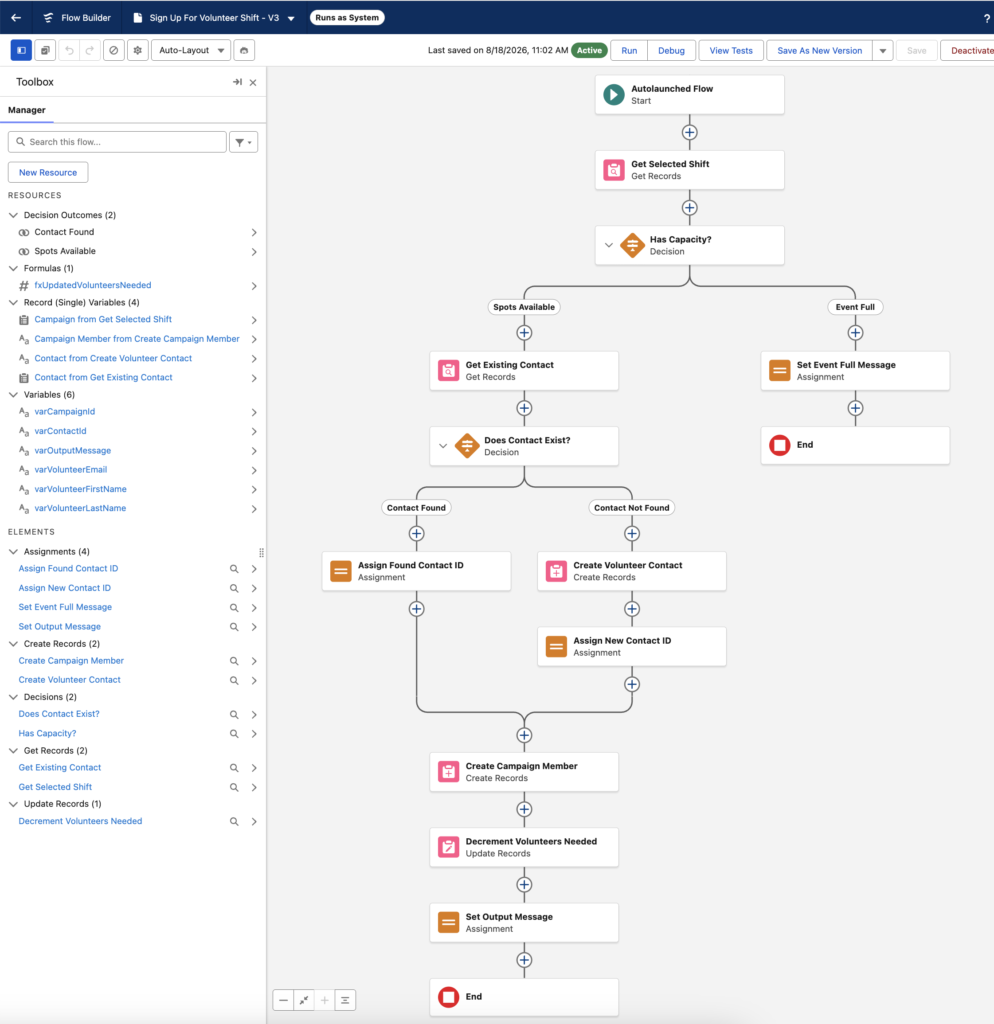
Figure 10: The Sign Up For Volunteer Shift flow begins by querying the selected Campaign record using Get Selected Shift to check slot availability before the Has Capacity? decision element routes the execution. If no slots remain, the flow follows the Event Full path to Set Event Full Message, which populates varOutputMessage notifying the agent that the shift is full. If spots exist, the Spots Available path executes Get Existing Contact to match on varVolunteerEmail, leading to the Does Contact Exist? decision element; existing records trigger Assign Found Contact ID to store varContactId, while missing contacts route to Create Volunteer Contact and Assign New Contact ID to generate a new record.
Both paths converge at Create Campaign Member to register the volunteer with a status of Responded, after which Decrement Volunteers Needed updates the Campaign capacity using the fxUpdatedVolunteersNeeded formula, and Set Output Message assigns a confirmation string to varOutputMessage for Agentforce.
Build the remaining actions
With the core logic defined, completing the backend automation suite requires building three Autolaunched Flows in Flow Builder: Cancel Volunteer Shift, Register Volunteer Shift, and Search Volunteer Shifts. Together, these flows give the Agentforce Subagent the capability to search, create, and manage volunteer records in real time.
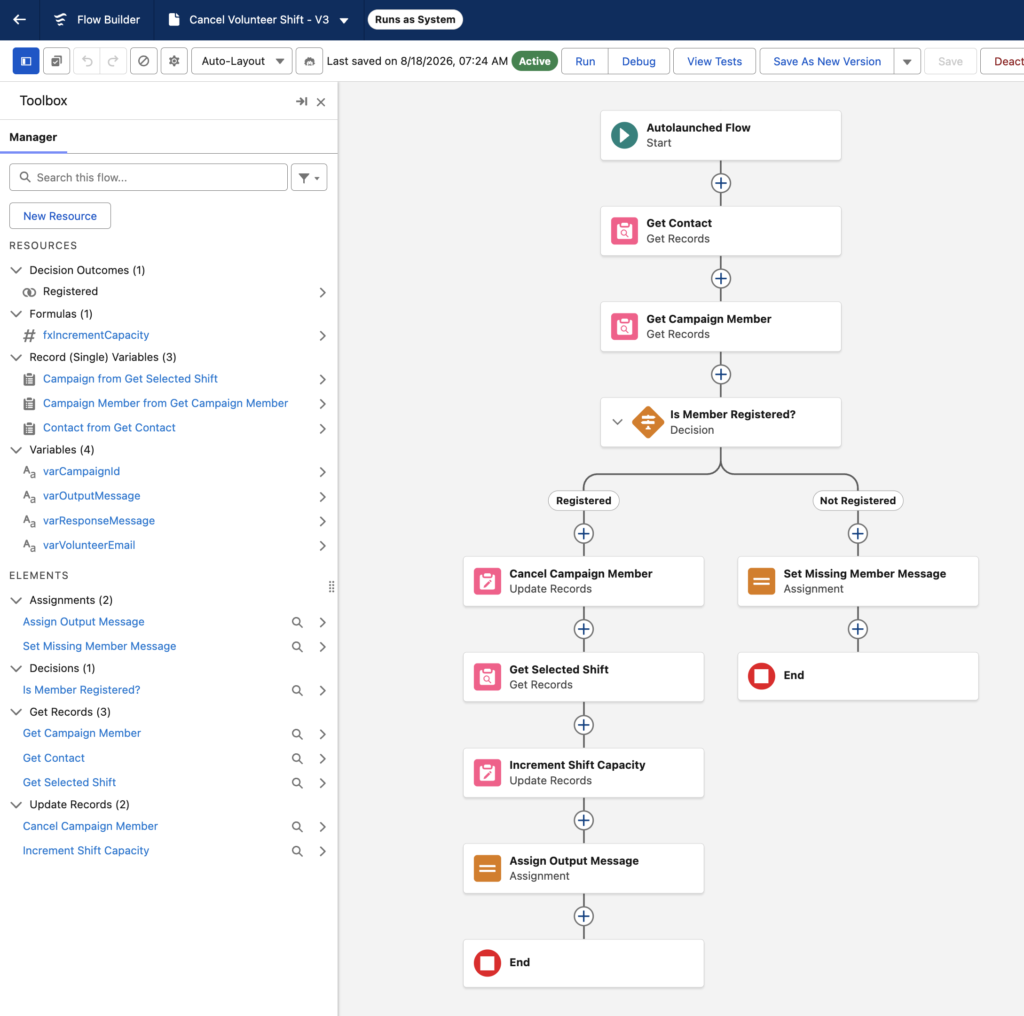
Figure 11: The Cancel Volunteer Shift flow processes shift drops by querying contact details (Get Contact) and active registrations (Get Campaign Member). The Is Member Registered? decision node verifies whether an active sign-up exists. If found, the flow updates the registration status in Cancel Campaign Member, queries the target shift via Get Selected Shift, increments open capacity using Increment Shift Capacity, and populates shift feedback to the agent in Assign Output Message. If no active registration exists, it routes to Set Missing Member Message to assign a friendly notification string letting the volunteer know that no active sign-up was found for their email.
Unlike the self-service Sign Up For Volunteer Shift flow (which automatically creates missing contacts), Register Volunteer Shift enforces strict pre-validation by requiring an existing Contact record to exist before registering the volunteer.
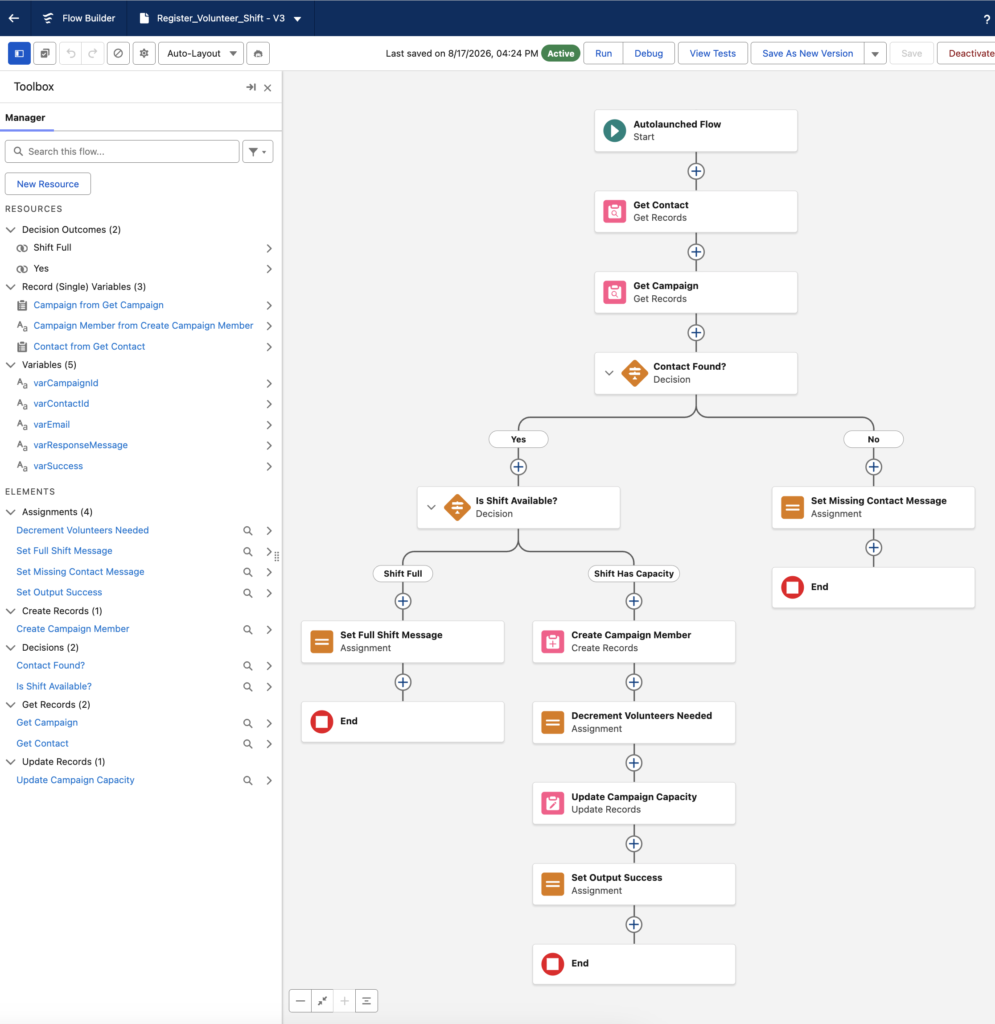
Figure 12 The Register Volunteer Shift flow processes user registrations by querying for an existing contact (Get Contact) and target campaign (Get Campaign). The Contact Found? decision branches to Set Missing Contact Message if no contact exists. If found, the Is Shift Available? node evaluates remaining slot capacity. If the shift is full, it assigns feedback via Set Full Shift Message. If slots remain, the flow executes Create Campaign Member, decrements capacity using Decrement Volunteers Needed, commits the update in Update Campaign Capacity, and sets Set Output Success, which passes confirmation feedback and a positive status flag back to the agent for conversation output.
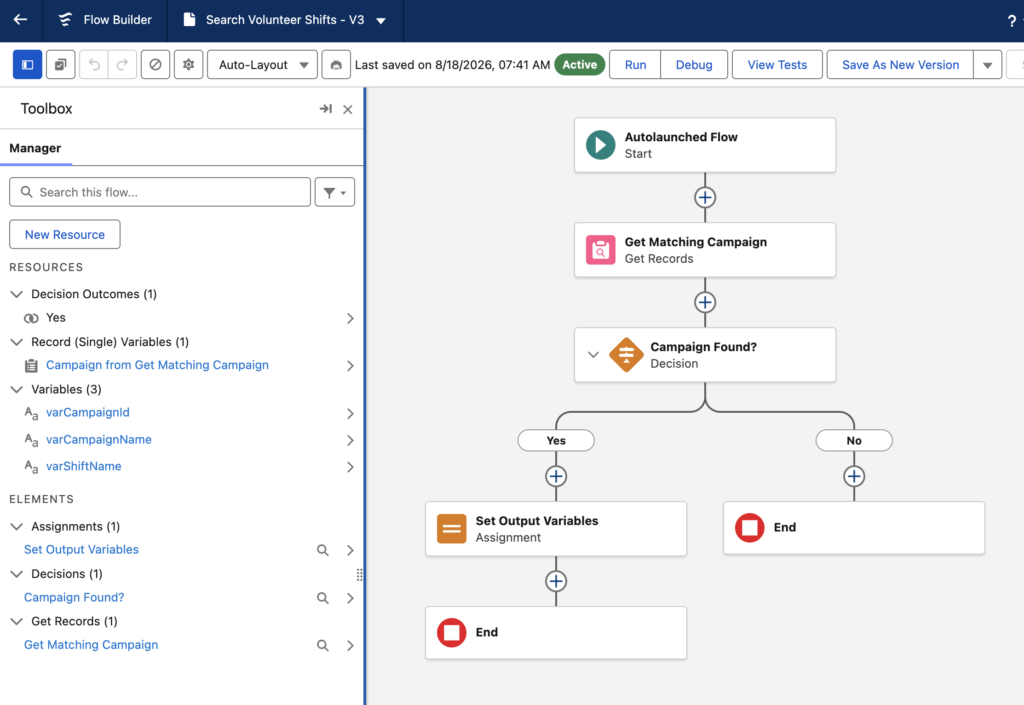
Figure 13: The Search Volunteer Shifts flow queries Salesforce for matching shift opportunities using the Get Matching Campaign element. The Campaign Found? decision node evaluates whether a record matching varShiftName was retrieved. If found, the flow proceeds to the Set Output Variables assignment element to capture shift details into output variables like varCampaignId and varCampaignName for Agentforce reasoning.
Connecting the Actions in Agentforce Studio
With the core flows active in Flow Builder, the final step involves registering them as Agent Actions inside Agentforce Studio under the Volunteer Management Subagent. Navigating to the agent action library allows you to add each active Autolaunched Flow to the Subagents. Providing clear names and descriptions for every action is important because the reasoning engine uses this metadata to evaluate when to execute a flow during live user interactions.
Configuring input and output context mappings ensures proper data flow between Agentforce and Salesforce. Input parameters like varCampaignId, varVolunteerEmail, varVolunteerFirstName, and varVolunteerLastName are set to Agent Populated, letting the agent extract those values directly from user prompts.
On the output side, parameters like varOutputMessage, varSuccess, varCampaignId, and varCampaignName must be assigned to matching Subagent context variables under Actions Available For Reasoning. Defining these outputs as String data types allows Agentforce to store alphanumeric record IDs, text names, and status messages.
Core Agent Capabilities
To verify the completed build, I executed end-to-end test scenarios in the Agentforce Live Test panel to confirm the following operational capabilities:
- Shift Lookup & Availability: Finds active, upcoming volunteer shifts where volunteers needed is greater than zero, and the date is on or after today, then presents open dates and remaining slot counts.
- Automated Campaign Search: Uses a search action called Search Volunteer Shifts to query campaigns by shift name and pass Campaign IDs to downstream processes.
- Volunteer Registration: Processes new sign-ups, extracts contact details directly from prompts or follow-up queries, and creates or matches Contact and Campaign Member records.
- RSVP Cancellation: Locates existing registrations by volunteer email, cancels the Campaign Member record, and automatically restores open shift capacity.
- Duplicate Registration Handling: Verifies existing CRM records during a sign-up request to inform users of active registrations and prevent duplicate contacts and registrations.
Built-In Business Guardrails
- Capacity Protection (No Negative Slots): A decision node in Flow Builder checks open capacity before registering a user, preventing shift counts from dropping below zero.
- Redundant Prompt Bypassing: Automatically skips asking for unnecessary date or shift confirmations when a search query returns a matching campaign.
- Strict Response Grounding: Forces the LLM to construct user feedback exclusively from backend flow output strings, preventing hallucinated details.
- Safe Edge-Case Handling: Handles null search results for non-existent shifts and missing registration records without throwing flow runtime errors.
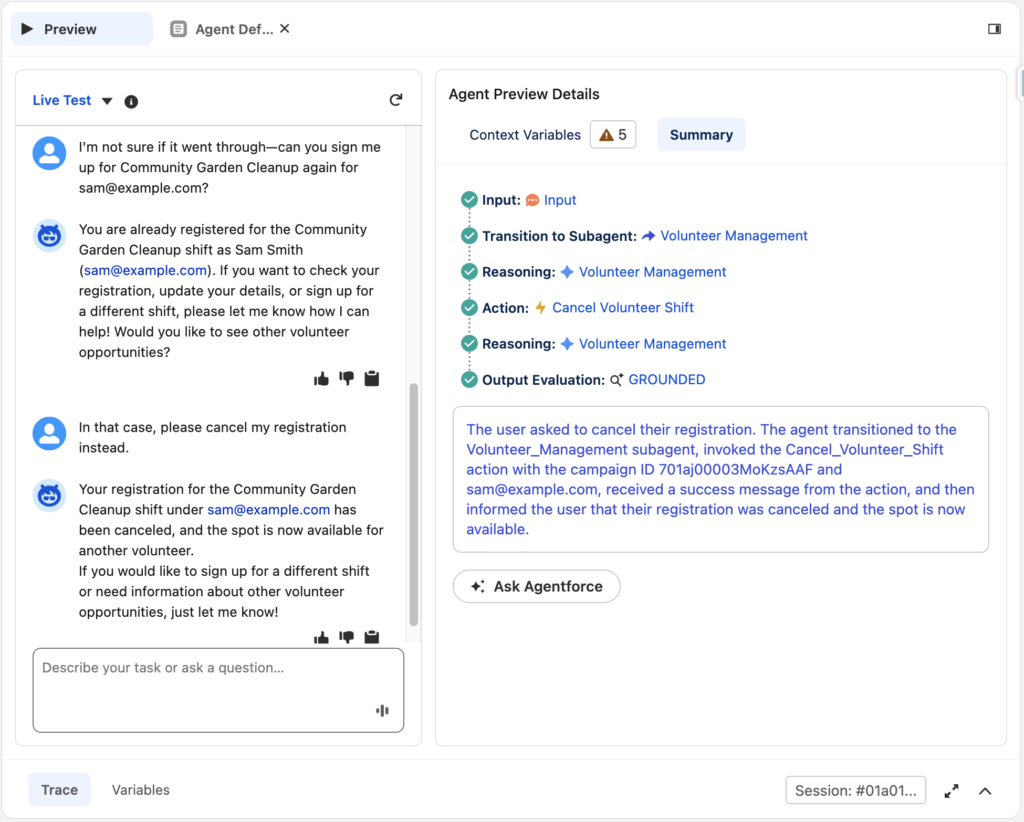
Figure 14: The Live Test panel confirms duplicate registration detection, real-time user intent pivoting, and grounded subagent execution during a single continuous conversation.
Key Takeaways
- Decouple Logic with Autolaunched Flows: Build core transaction logic like slot lookups, registrations, and cancellations in Autolaunched Flows so Agentforce can trigger backend actions securely.
- Ground LLM Responses via Flow Messaging: Pass exact status text through output variables like varOutputMessage to force the agent to use grounded system feedback instead of hallucinating shift details.
- Verify System Integration User Access: Always assign object-level and field-level FLS permissions to the automatically provisioned EinsteinServiceAgent user to avoid runtime UNKNOWN_EXCEPTION errors.
- Prevent AI Overbooking and Duplicate Records: Implement decision nodes in Flow Builder to evaluate capacity before registration and check existing records to prevent duplicate contacts.
Your next step
Setting up autonomous agents requires aligning reasoning instructions with backend permissions and flow structures, but the payoff is an intelligent assistant that handles complex CRM transactions. Try building a similar flow-backed agent in your developer sandbox to automate repetitive service workflows, and let me know in the comments how you structure your Subagent guardrails!
SALESFORCE RESOURCES:
Resource 1 Title: Agentforce Service Agent Developer Guide
Resource 1 URL: https://developer.salesforce.com/docs/ai/agentforce/guide/get-started.html
Resource 2 Title: Automate Tasks with Flows
Resource 2 URL: https://help.salesforce.com/articleView?id=sf.flow.htm
TRAILHEAD MODULE OR TRAIL
Title: Quick Start: Build an Agent with Agentforce
URL: https://trailhead.salesforce.com/content/learn/trails/build-ai-assistants-with-einstein-copilot
Additional URL: https://help.salesforce.com/s/articleView?id=000372725&type=3

Martin Farrell
Martin Farrell is a Salesforce Consultant and Business Analyst, as well as a Salesforce Certified Administrator and Marketing Cloud expert, with 8+ years of experience in marketing automation strategy and Salesforce. He helps clients improve their marketing and sales pipelines by connecting technology to business goals. He is particularly interested in practical applications of AI agents, especially in nonprofit technology.
- This author does not have any more posts.