

A Full Copy sandbox refresh looks like the easiest line in a release plan: click Refresh, confirm, wait. The risk isn’t in the click. It shows up the next morning, when a tester reports that an integration is down, a Flow email never arrived, nobody can sign in through SSO, and someone quietly asks whether a UAT test just emailed a real customer.
Those problems share one root cause: a refresh doesn’t update your sandbox; it replaces it. Salesforce’s own documentation notes that the sandbox copy engine creates an org as part of each creation and refresh request, and that sandbox and production orgs have unique org IDs. That is why credentials, tokens, and trust relationships don’t simply follow along, while everything copied from production, including real customer email addresses, arrives exactly as it was.
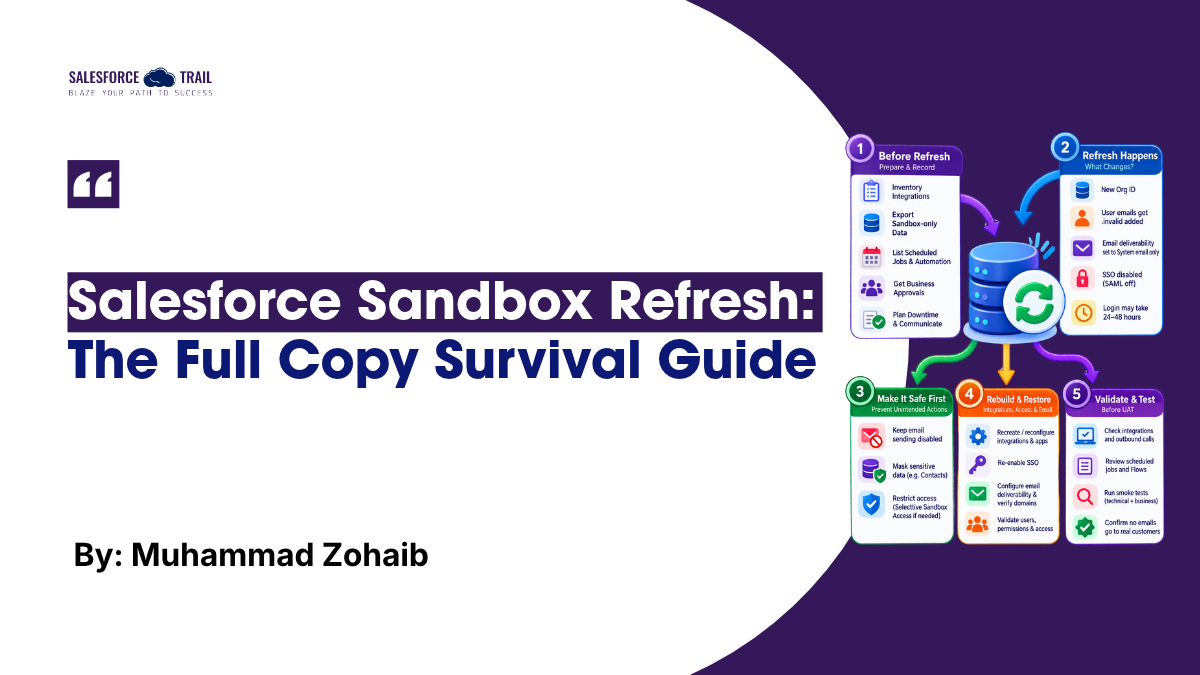
While documenting a Full Copy refresh runbook for an enterprise org (a tax engine, an accounting platform, middleware, a task tool, a data-enrichment tool, and a long list of Flows and scheduled jobs), I cross-checked each step against Salesforce’s documentation, and a few steps changed as a result. This article is that runbook boiled down to the decisions that matter: what to record before, what to automate during, and the order in which to rebuild after. The rule that ties it together: nothing that can send an email or write to an external system gets switched on until the sandbox has been made safe.
Key Takeaways
- A refresh replaces the sandbox. Anything that exists only there is lost, and anything copied from production, including real customer emails, arrives untouched.
- Write the integration and scheduled-job inventory before the refresh, not after it.
- Make the data safe first: invalidate or mask non-user emails, and only then raise email deliverability above System email only.
- Automate the repeatable safety work with SandboxPostCopy so it happens on every refresh.
- Repair integrations with one checklist, audit copied endpoints and keys, and re-enable automation in layers.
Table of Contents
What happens when you refresh a Salesforce Sandbox?
A Salesforce sandbox refresh builds a brand-new org and replaces the old one. SSO, email deliverability, and every external integration break on purpose, while production data copies over untouched. Before you refresh, inventory anything that lives only in the sandbox. Afterward, make the data safe first, then rebuild access, integrations, and automation in that order.
1. Know what a refresh actually replaces
Before planning anything, be precise about what you’re dealing with. These are the facts from Salesforce’s documentation that shape every later step:
- A Full sandbox copies both metadata and data. It’s a full replica of production, which is why it’s the environment teams reach for when they need UAT and release sign-off. Salesforce notes that Full sandboxes are the only type that supports performance testing, load testing, and staging. The catch is the refresh interval. A Full Copy sandbox refreshes every 29 days, compared with 5 days for Partial Copy and 1 day for Developer and Developer Pro.
- Users come across, but their emails are changed. User email addresses get “.invalid” appended so production users don’t receive sandbox email. Other email addresses, such as those on Contact records, are not changed.
- Email deliverability resets to System email only. That setting allows only automatically generated mail, such as password resets and new-user messages. Workflow, Flow, and integration email won’t send until you change it.
- SSO is switched off. Sandbox copies are made with SAML disabled. Configuration is preserved, except the Salesforce Login URL, which updates to the sandbox URL after you re-enable SAML.
- Logging in takes a moment. After a create or refresh, it can take 24 to 48 hours before,
https://test.salesforce.comworks. Until then, use the sandbox’s My Domain URL, in the formatMyDomainName--SandboxName.sandbox.my.salesforce.com. - Duration is not in your control. In our runbook, we planned for 6 to 24 hours, depending on org size and attachments. Salesforce says it can’t speed up a copy, and that demand peaks around release transitions, so avoid scheduling a refresh next to one.
Read that list as a to-do list. Every line is something you will have to verify after the refresh finishes.
2. Record what only exists in the sandbox, before you click
A refresh brings production’s configuration into the sandbox. Anything that exists only in the sandbox is gone: in-flight changes that never reached source control, hand-built test data, values you typed into Custom Settings, and apps you created there. Treat source control as the source of truth, and export the rest.
Two details matter more than they used to:
- Local External Client Apps are not copied. Salesforce Help states that local external client apps aren’t copied to a new sandbox when you clone or refresh; only packaged ones are. If a sandbox integration depends on a local one, you will be recreating it.
- New Connected Apps can’t be created by default. Since Spring ’26, creating new Connected Apps is disabled by default, and Salesforce recommends External Client Apps. Existing Connected Apps keep working, and App Manager offers a Migrate to External Client App option. Decide which type each integration uses before the refresh, not during it.
Next, build an integration inventory. For every integration, record the purpose, the endpoint, the authentication type, the Named Credential, External Credential, and Auth Provider names, the app it uses, the integration user, any middleware it depends on, and who owns it on the other side. This is the page you will be grateful for at hour 18.
Then inventory your scheduled work, so you can compare it after the refresh. This query lists scheduled jobs, who owns them, and when they next fire:
					SELECT CronJobDetail.Name, CronJobDetail.JobType, CronExpression,
       State, NextFireTime, OwnerId
FROM CronTrigger
ORDER BY CronJobDetail.Name
Finally, handle the governance work: written approvals from business, QA, release management, and integration owners, a communication plan with the downtime window, and a deployment freeze covering metadata deployments, integration changes, and CI/CD releases until post-refresh validation is complete.
3. Automate the first minutes with SandboxPostCopy
Anything you do by hand after every refresh will eventually be skipped. Salesforce gives you a hook for this: when you create or refresh a sandbox, you can name an Apex class that implements the SandboxPostCopy interface. , and Salesforce runs it at the end of the copy as a special Automated Process user that isn’t visible in the org. It receives a SandboxContext, which exposes the org ID, sandbox ID, and sandbox name.
The most valuable thing to put in it is the safety work. Here is a minimal class that starts a batch to invalidate every Contact email that isn’t already invalid:
					// SandboxRefreshSetup.cls
global class SandboxRefreshSetup implements SandboxPostCopy {
    global void runApexClass(SandboxContext context) {
        // Runs at the end of the copy, as an Automated Process user
        Database.executeBatch(new InvalidateContactEmailBatch(), 200);
    }
}
					// InvalidateContactEmailBatch.cls
public class InvalidateContactEmailBatch
        implements Database.Batchable {
    public Database.QueryLocator start(Database.BatchableContext bc) {
        return Database.getQueryLocator(
            'SELECT Id, Email FROM Contact ' +
            'WHERE Email != null AND (NOT Email LIKE \'%.invalid\')');
    }
    public void execute(Database.BatchableContext bc, List scope) {
        for (Contact c : scope) { c.Email = c.Email + '.invalid'; }
        Database.update(scope, false);
    }
    public void finish(Database.BatchableContext bc) {}
}
Three practical notes. First, the interface requires a no-argument constructor, and Salesforce provides a Test.testSandboxPostCopyScript()method so you can cover the class with a test. Second, Contacts are only the start: Leads, custom objects, and anything else holding an email address need the same treatment. Third, if you need more than emails masked (names, phone numbers, other personal data), look at Salesforce Data Mask. It is a managed package installed in production, requires a license, and a DataMaskPolicycan be set to run automatically when a sandbox is created or refreshed. Production data is never masked.
4. Make the sandbox safe before you make it useful
Email is where order of operations matters most. A refreshed sandbox starts with real customer addresses on Contacts and Leads, and with a deliverability setting that is, by default, protecting you. Keep that protection in place until the data is safe. The sequence I use:
- Leave deliverability on System email only. It’s the default for refreshed sandboxes. Don’t raise it yet.
- Invalidate or mask every non-user email address. Use the post-copy batch from Section 3 or Data Mask. If Contact Flows could send email while the batch runs, pause them first and reactivate them when it finishes.
- Give testers access deliberately. Selective Sandbox Access limits the sandbox to the users in a public group you choose when you create or refresh it, and saves you the step of fixing their email addresses afterwards; Salesforce recommends fewer than 150 members. For anyone else who needs to send email, note that Salesforce requires users to have a verified email address with
.invalidremoved before they can send email alerts through workflow, Process Builder, Flow, or triggers. - Only then raise deliverability to All email, and only if the tests need real sending. Point test recipients at inboxes you control.
One correction to a common runbook habit: it’s tempting to set Access Level to All email early, because workflow and Flow emails won’t send without it. Doing that before step 2 is how a UAT test reaches a real customer. Contact email invalidation comes first.
Sender-domain verification is the second email problem. Salesforce now requires the sending domain to be verified through a DKIM key or an Authorized Email Domain, and DKIM configuration does not carry over to a refreshed sandbox. The symptom is a Flow failing with this message: We can’t send your email because your email address domain isn’t verified. The fix is a sandbox-specific DKIM key: create it in Setup, have whoever owns your DNS publish the CNAME records Salesforce generates, then activate the key. Plan that as a joint task between your Salesforce admins and your security or DNS team, because neither can finish it alone.
If you need email working before DNS is ready, Salesforce offers a stopgap on the Deliverability page: Use a substitute email address for unverified domains. Mail then goes out from an address on a Salesforce-controlled domain, while the sender’s display name and reply-to address stay as they were. It keeps testing moving, but it is not a replacement for verifying the domain.
5. Rebuild each integration with the same five steps
After a refresh, every external connection breaks, and the useful discovery is that they all break the same way. Whether it is a tax engine, an accounting platform, a task tool, a data-enrichment service, or middleware, the repair is one repeatable checklist:
- Confirm the endpoint is a non-production one. Check Named Credentials, Custom Metadata, and Custom Settings.
- Re-authenticate. Salesforce’s Named Credentials packaging guidance notes that sensitive access tokens can’t be packaged, so assume secrets and authorized users must be re-entered or re-authorized in the sandbox, along with any Auth Provider.
- Recreate or re-authorize the app. Local External Client Apps will be missing; recreate them. Check OAuth settings on existing apps, because Salesforce documents that some OAuth options can show as deactivated in a sandbox even though they’re active in production.
- Test one round trip with one harmless record, and check the response on both sides.
- Write the result in the inventory from Section 2, so the next refresh starts from a better page.
Step 1 deserves extra caution. Anything stored as ordinary configuration, such as an endpoint URL in Custom Metadata or a Custom Setting, or an API key kept in a field, is copied exactly as it exists in production. A sandbox that can’t reach anything is annoying. A sandbox that can reach a production system is dangerous. Audit these values before any automation is turned back on, and keep sandbox endpoints in one place so there is only one value to change.
Also confirm with each external team which of their environments your sandbox is paired with. A perfectly repaired connection to the wrong environment is still a defect.
6. Bring automation back in layers
It is tempting to switch everything on once integrations pass. Don’t. Re-enable in layers, and validate each before the next:
- Access. Re-enable SAML SSO and confirm the login URL, validate profiles and permission sets, and confirm admin and integration-user access. MFA isn’t contractually required in sandboxes, but Salesforce strongly recommends it where a sandbox holds customer data, which a Full Copy does.
- Technical components. Run Apex tests, then check triggers, Flows, validation rules, Lightning pages, LWCs, and API access.
- Scheduled work. Run the
CronTriggerquery from Section 2 again and compare it with your inventory. Treat every scheduled job and scheduled Flow as off until you have confirmed otherwise. Scheduled Apex runs as the user who scheduled it, so schedule each job as the user it should run as. - Email-sending automation, last. By now contact data is safe and deliverability is deliberate.
As each layer comes back, watch for three things: duplicate automation (the same job scheduled twice), unexpected email triggers, and integration loops where two systems keep updating each other.
7. Smoke test, then sign off twice
A completed refresh and a ready sandbox are two distinct milestones. Close the gap with two passes. Technical smoke testing covers login, record creation and updates, Lightning pages, APIs, LWCs, Apex execution, and Flow execution. Business smoke testing covers the processes people rely on, such as lead and opportunity management, approvals, and reporting.
Then collect sign-off from each group that owns part of the result: the Salesforce team, the integration team, QA, and the business stakeholders. Finish with a short handover note listing everything that is intentionally different from production: masked fields, integrations deliberately left off, and any stopgap settings still in place. That note answers most of the questions testers will otherwise ask you on day one.
Final Thoughts
You don’t need a perfect runbook on day one. Before your next refresh, write down every integration and scheduled job on one page, add a SandboxPostCopy class that invalidates non-user emails, and agree on the order in which email and automation come back. Those three things prevent most of the damage a refresh can do. Try it on a Developer Pro sandbox first, since it refreshes daily, and if you find a step that works better than what’s here, I’d like to hear about it in the Trailblazer Community.
Salesforce Resources

Muhammad Zohaib
Muhammad Zohaib is a Salesforce Developer and Admin with 3+ years of experience across Sales Cloud, Service Cloud, and CPQ, building scalable CRM solutions for teams ranging from healthcare providers to B2B sales organizations. He works extensively in Apex, Lightning Web Components, and Flow, and has hands-on experience integrating Salesforce with third-party platforms including Claude AI and n8n.
- Muhammad Zohaib
 September 25, 2026