

If you’ve worked with sales teams, you know the drill. A rep finishes a great customer call, and then comes the part nobody likes: opening the Opportunity and typing up next steps, competitors, implementation plans, all from memory or from a transcript they don’t want to read again.
I kept seeing this, and I kept thinking the same thing: reading long text and pulling out what matters is exactly what AI is good at. The AI part was never really the problem for me. The real question was how to plug it into Salesforce in a way I’d trust, where it only sees what the user can see, never saves anything on its own, and the rep always has the final say.
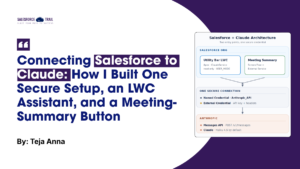
So I built it. I connected Salesforce to Claude once and ended up using that one connection in two different ways: an Ask Claude assistant (Apex + LWC) and a meeting summary button on the Opportunity that drafts field values for the rep. Here’s how it came together, starting with the piece everything else sits on.
Key takeaways
- Store the API key in an External Credential and call through a Named Credential, so no secret ever touches code or Flow.
- Build the connection once and expose it twice: an Apex service for pro-code features and an External Service for Flow.
- Give AI read-only tools that run in
USER_MODE, so it can never see more than the user can. - Ask for tagged, field-by-field output when Flow needs to parse the response.
- Let AI draft and people decide, with Merge, Replace, and Do not update choices on every field.
Table of Contents
Set up one secure connection to Claude
The first thing I set up was a Named Credential, and honestly, this is the part I’d tell anyone to get right first. It stores the endpoint and authentication, so the API key never appears in Apex, in a Flow, or in the repo.
The setup has two parts:
- External Credential (Anthropic): holds the API key and adds the x-api-key and anthropic-version headers to every request. Grant access to it through a permission set, so only intended users can make calls.
- Named Credential (Anthropic_API): points to the Anthropic endpoint and uses the External Credential.
If you haven’t used the newer credential model before, Salesforce’s own guide on Named Credentials and External Credentials is the right place to start.
With that in place, Apex calls Claude with a simple callout:
					HttpRequest req = new HttpRequest();
req.setEndpoint('callout:Anthropic_API/v1/messages');
req.setMethod('POST');
req.setHeader('Content-Type', 'application/json');
req.setTimeout(60000);
req.setBody(JSON.serialize(new Map{
    'model' => 'claude-haiku-4-5',
    'max_tokens' => 4096,
    'system' => systemPrompt,
    'messages' => messages
}));
HttpResponse res = new Http().send(req);
I wrapped this in a reusable ClaudeService class with two habits worth copying:
- Retry only transient errors. A 429 (rate limit) or 5xx gets one retry. A 400 or 401 fails immediately, because retrying a bad request just wastes a callout.
- Return friendly errors, never raw ones. The service catches failures and returns a short, plain-English message instead. The user never sees a stack trace or an API response body.
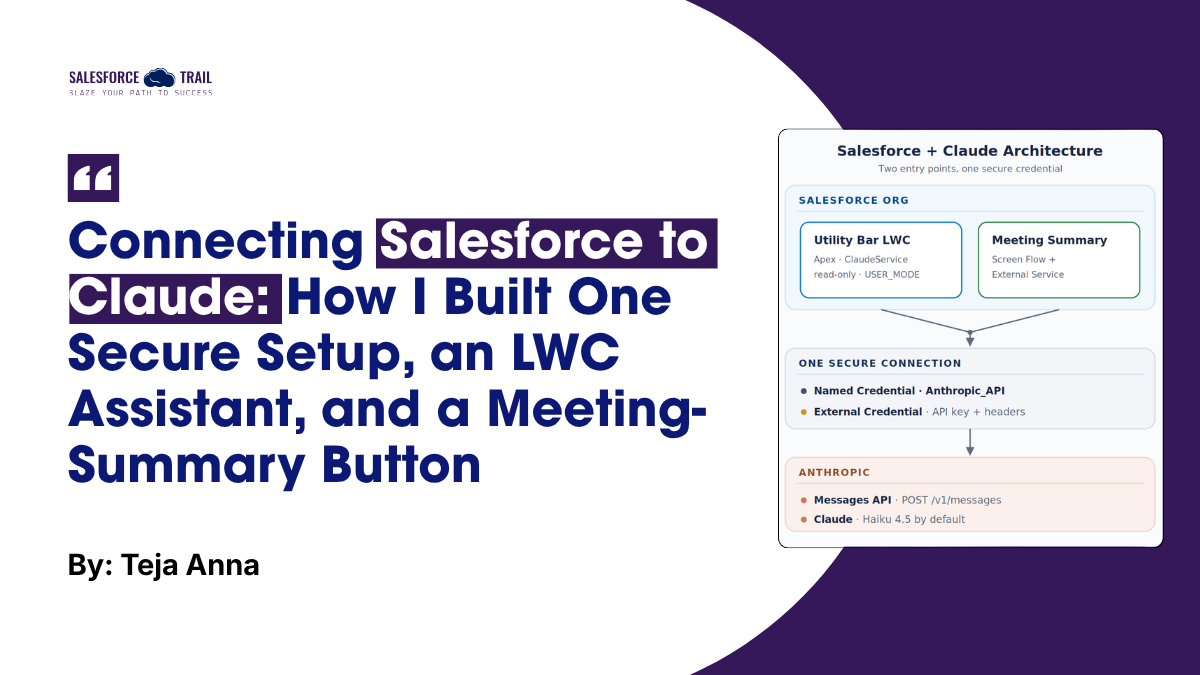
The nice surprise was that the same Named Credential also worked for the no-code side. I registered the Anthropic Messages endpoint as an External Service, and Flow Builder could suddenly call Claude as a regular action. Same credential, two ways in.
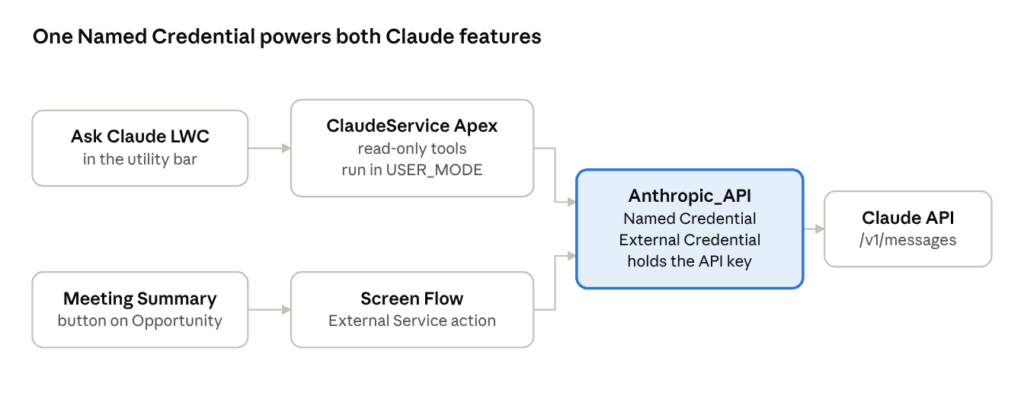
Architecture · two entry points, one credential
The pro-code path (top) and the no-code path (bottom) share one credential, so the API key lives in exactly one place.
Put an AI assistant in the utility bar with an LWC
For the assistant, I put the LWC into the utility bar, so it’s one click away no matter what page the rep is on. They type a question, Apex sends it to Claude, and the answer comes back formatted and readable.
What makes it genuinely useful is that Claude can look things up. Through the Messages API’s tool-use feature, Apex hands Claude a small set of read-only tools: run a SOQL query, describe an object, fetch related records. Claude picks the tool it needs, Apex runs it, and the result goes back to Claude. That loop repeats up to eight times per question before the assistant has to answer.
The key design rule: Claude only gets what the user could already see. Every tool runs as the current user:
					// Only SELECT statements are accepted, and they run with the user's permissions
if (!soql.trim().toUpperCase().startsWith('SELECT')) {
    return 'Only SELECT queries are allowed.';
}
List rows = Database.query(soql, AccessLevel.USER_MODE);
AccessLevel.USER_MODE is doing the heavy lifting there. Per Salesforce’s user-mode documentation, it applies the running user’s object permissions, field-level security, and sharing rules. I cap results at 20 rows, and the class has no DML at all, so Claude can’t create, edit, or delete a thing even if it tried.
A few component details made a big difference to the experience:
- Page awareness. The LWC reads the current page reference. On a record page, it passes the record Id, so “summarize this opportunity” just works.
- Conversation memory. The component keeps the chat history and sends it with each question, so follow-ups like “and which of those are in Texas?” make sense.
- Safe rendering. Claude replies in Markdown. The component escapes all HTML first, then converts the Markdown, so nothing in a response can inject script into the page.
- Each answer has an expandable list of the tool calls Claude made, so users (and admins) can see exactly which queries ran.
- Usage logging. Every turn is saved to custom objects with token counts and estimated cost, which feed a usage dashboard.
Turn meeting notes into drafted Opportunity fields
The second piece, and the one reps noticed most, is the Claude Meeting Summary button on the Opportunity. It runs a Screen Flow, and there’s no Apex behind it at all.
- Check the record. The flow stops early if the Opportunity is closed or its close date has passed.
- Pick the sources. The rep selects up to five recent recorded meetings for the account, plus up to five emails from the last 90 days.
- Gather the text. For each meeting, the flow pulls the call transcript with the standard getConversationTranscript If no transcript exists, it falls back to the meeting’s AI summary. Each source is labelled, for example,
=== Meeting: <topic> | Source: Transcript ===,so Claude knows where each passage came from. - Call Claude. The External Service action sends the combined text with a prompt template listing the fields to draft: next step, description, go-to-market strategy, implementation strategy, competitors replaced, and more.
- Review and save. The rep sees every draft beside the current value and decides what happens to it.
The Prompt trick that made Flow parsing painless
The tricky part here was getting Claude’s answer back in a shape Flow could actually work with. I didn’t want to parse JSON in Flow, so I went simpler: I asked Claude to wrap each answer in tags named after the field:
					Wrap each answer in the exact tags shown below. Output NOTHING outside the tags.
If the content does not contain information about a question, output nothing between its tags.

[[NextStep]][[/NextStep]]
[[Description]][[/Description]]
[[GoToMarket]][[/GoToMarket]]
[[ImplementationStrategy]][[/ImplementationStrategy]]
[[CompetitorsReplaced]][[/CompetitorsReplaced]]
A formula then extracts each value with MID and FIND. It is simple, needs no Apex, and is easy for an admin to extend: adding a field means adding a pair of tags and a formula.
The prompt also does a lot of quiet work. It tells Claude to answer only from the provided content, never infer, and never fill a field with “N/A” or “not discussed”. It also sets length limits that match each field’s size, such as 200 characters for Next Step.
Keep the rep in control
One rule I didn’t want to bend: Claude only drafts, and the rep decides. On the review screen, every field shows the question, what’s in the field today, and Claude’s suggestion in a box the rep can edit. Then they pick what happens to it:
- Merge (default): append the draft to the existing value.
- Replace: overwrite the existing value.
- Do not update: keep the current value.
Save formulas add a few safety nets. A blank draft never overwrites existing data, and saved text is stamped “Meeting Summary MM/DD/YYYY:” so everyone can see where it came from. Save errors land on a friendly error screen instead of failing silently.
Lessons learned
- Start with the smallest model. Most of our users run on Claude Haiku. It’s quick, it’s cheap, and for this kind of work it’s plenty. Only admins can switch to bigger models, and I enforce that in Apex, not just by hiding it in the UI. (Model IDs change over time, so check Anthropic’s current model list before you copy mine.)
- Expect a missing tag sooner or later. If Claude skips a tag, FIND returns 0 and the formula pulls the wrong text. Check that both tags exist before you parse. I learned that one the hard way.
- Keep an eye on synchronous callouts. Every question waits on Claude in one transaction. At our volume that’s fine, but Salesforce caps how many long-running requests can run at once, so if usage grows I’ll move to Apex Continuations.
- Log everything from day one. Tracking tokens and cost per turn turned out to be one of the best decisions I made. When leadership asked what this costs and who’s using it, I already had a dashboard.
A fair question: why not Agentforce?
I get asked this a lot, and I’ll say what I always say: look at Agentforce first. It’s Salesforce’s native answer, and for plenty of teams it’s the right call. For this project, I wanted full control over the model, the prompts, and the per-turn cost tracking, using tools I already had on hand: Named Credentials, Apex, LWC, and Flow. A nice side effect is that the pattern isn’t locked to one AI vendor, since the same building blocks work with most LLM APIs.
Start small and build from there
If there’s one thing I’d want you to take from this, it’s that you don’t need a big AI project to see real value. Start with one Named Credential and one small use case, maybe drafting a single field from meeting notes. Once reps start trusting the drafts, that same connection can grow into an assistant, more fields, or other objects.
I’m curious: which field would your reps be happiest to stop typing by hand? Let me know in the comments or find me in the Trailblazer Community.
Salesforce Resources
Trailhead module
Frequently Asked Questions
Store the key in an External Credential and route calls through a Named Credential. Apex and Flow reference the credential by name with callout:Anthropic_API, so the key never appears in code, in a Flow, or in version control.
Yes. Register the Anthropic Messages endpoint as an External Service against your Named Credential, and Flow Builder treats it as a normal action. The meeting-summary button in this build uses that path with no Apex at all.
Not if you run every query with AccessLevel.USER_MODE. That enforces the running user’s object permissions, field-level security, and sharing rules, so the assistant is capped at exactly what the person could already pull up themselves.
Start with the smallest one that does the job. For reading transcripts and drafting short fields, Claude Haiku is fast and inexpensive. Reserve larger models for genuinely harder reasoning, and gate that choice behind admin permissions.
Yes, for real transcripts. The Get Conversation Transcript action depends on ECI and on calls that were recorded and processed. Without it, the flow can only fall back to an AI summary, which assumes you have recorded meetings to begin with.