


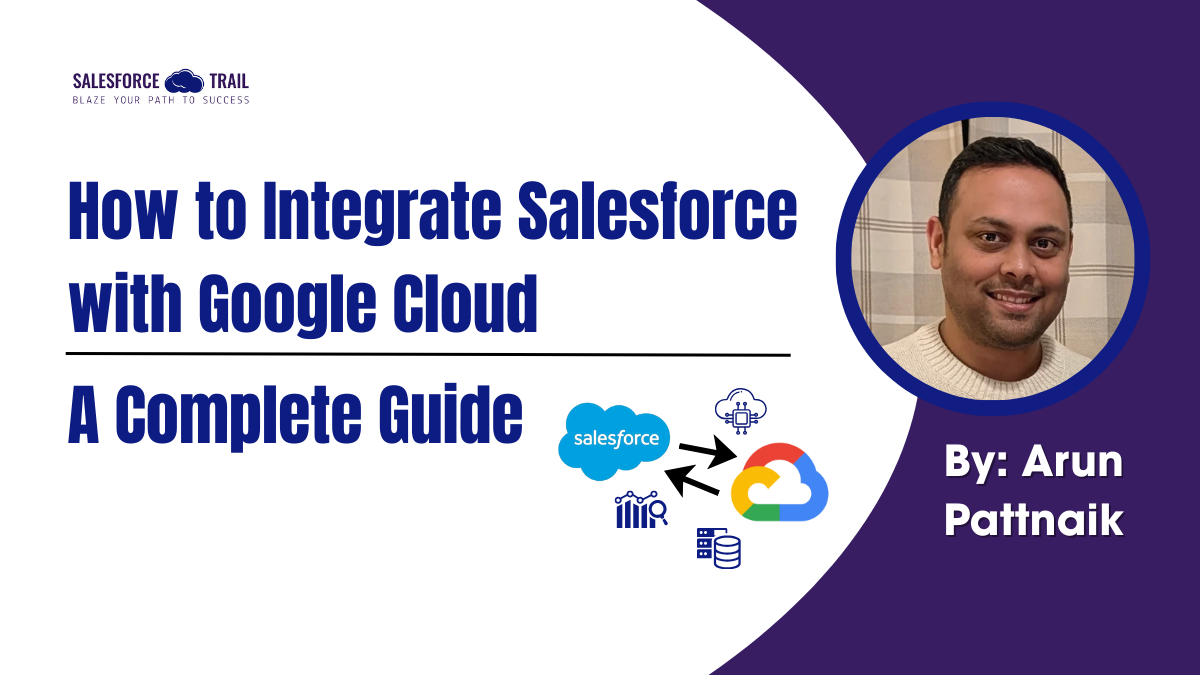
Connecting Salesforce with Google Cloud can transform how your organization handles CRM data, enabling powerful automation, analytics, and workflow capabilities. The Salesforce Connector in Google Cloud’s Integration Connectors framework makes this possible by allowing you to perform essential operations like insert, read, update, and delete on Salesforce data directly from your Google Cloud integrations.
Table of Contents
What Is the Salesforce Connector?
The Salesforce Connector is a bridge that lets Google Cloud integrations interact programmatically with your Salesforce data. It supports core CRM operations, including inserting, reading, updating, and deleting records. Built on the Salesforce Web Services API, the connector works with Enterprise, Unlimited, and Developer Editions, with Professional Edition support available at additional cost. The connector defaults to Salesforce API version 56.0.
Prerequisites
Before diving into configuration, ensure you have the following in place:
Permissions and Roles
You’ll need the roles/connectors.admin IAM role to set up the connector. Additionally, the service account used by the connector requires both roles/secretmanager.viewer and roles/secretmanager.secretAccessor permissions. If you don’t have a service account yet, create one in the same Google Cloud project.
Enable Required Services
Two APIs must be enabled in your project: the Secret Manager API and the Connectors API. Google Cloud will typically prompt you to allow these automatically during setup if they’re not already active.
Network Connectivity
Verify that your environment has valid network connectivity patterns to support connector operations.
Creating Your Salesforce Connection
A connection represents a link to your Salesforce data source. Each unique data source requires its own connection. Here’s how to set one up:
- Navigate to Integration Connectors and select Connections in the Google Cloud Console
- Click Create New and choose your region
- In Connection Details, select Salesforce as your connector and pick a version
- Name your connection using lowercase letters, starting with a letter, with a maximum of 49 characters
- Configure optional settings like logging and labels
- Select your service account
- Set up destination settings, including host or private endpoint
- Choose your authentication method
- Review your configuration and click Create
Authentication Options
The Salesforce Connector offers flexible authentication to suit different security requirements:
- OAuth 2.0 – Authorization Code: Uses Client ID, Client Secret, Scopes, and Authorization URL. Note that changes to your external app configurations may require re-authorization.
- OAuth 2.0 – JWT Bearer: Leverages a connected app Consumer Key paired with a private key stored securely in Secret Manager.
- OAuth 2.0 – Client Credentials: Relies on Client ID and Client Secret, both stored securely.
- Username and Password: Requires your Salesforce username, password, and security token, all stored in Secret Manager.
For OAuth methods, remember that you must install the connected app in Salesforce. Salesforce now requires explicit installation of connected apps; OAuth connections may fail.
Managing Re-Authorization
When you update OAuth settings in Salesforce, you’ll need to re-authorize the connection in Google Cloud to maintain access. You can handle this directly from the connection’s settings page.
Using the Connector in Your Integrations
Once created, your Salesforce connection integrates seamlessly with Apigee Integration and Application Integration. Add it to your integration tasks using the Connectors task for streamlined development workflows.
Important Limitations
Keep these constraints in mind when planning your implementation:
- The connector processes a maximum of 28 transactions per second per node
- Upsert operations are not currently supported
- Connections run with two nodes by default for availability, though you can adjust this based on performance requirements
Infrastructure as Code with Terraform
For teams embracing infrastructure-as-code practices, the Salesforce Connector supports Terraform automation. You can configure proxy settings, authentication schemes, and SSL types for proxy communications through Terraform templates, making it easy to standardize deployments across environments.
Using the Salesforce Connection in Your Integrations
Once you’ve created your Salesforce connection, it becomes available in both Apigee Integration and Application Integration. You’ll use it through the Connectors task, which provides access to a comprehensive set of actions and operations.
Core Operations and Actions
The Salesforce Connector supports fundamental CRM operations, including insert, delete, update, and read operations on your Salesforce data. For more complex scenarios, the connector provides an Execute Custom Query action that allows you to run custom SQL queries directly.
Setting Up Custom Queries
When you need to execute custom SQL queries, follow these steps:
- Add a Connectors task to your integration
- Configure the connector task and select Actions
- Choose Execute Custom Query from the Action list
- Configure the task input with your timeout settings (default: 180 seconds) and maximum row limit (default: 25 rows)
- Use the Script Editor to enter your SQL query
The connector supports parameterized queries using question marks as placeholders. For example, to select employees by last name, you might use: SELECT * FROM Employees WHERE LastName=?. Each question mark requires a corresponding parameter that you’ll add sequentially. Both DML and DDL statements are supported.
Note that while query parameters work in WHERE clauses, the OFFSET clause doesn’t support parameterized values and can’t be dynamically replaced.
Available Actions
The connector provides several specialized actions for different use cases:
Bulk Data Operations
- CreateJobV2: Creates a job for bulk operations with support for insert, delete, update, upsert, or query actions
- UploadJobDataV2: Uploads CSV data files to Salesforce for bulk processing
- CreateBatch: Creates batches for processing large datasets
- GetBatch: Retrieves information about a specific batch
- GetBatchResults: Obtains the results of a completed batch operation
Job Management
- CreateJob: Adds a Salesforce object entry and initializes a job
- GetJob: Retrieves detailed information about a specific job
File Operations
- UploadAttachment: Uploads files and associates them with Salesforce entities
Practical Examples
Creating a Bulk Insert Job
To create a job for inserting contacts, you would configure the CreateJobV2 action with input like:
					{
  "ObjectName": "Contact",
  "Action": "insert"
}
This returns job details, including the job ID, state, and content URL that you’ll use for subsequent operations.
Uploading Data
After creating a job, upload your CSV data using the UploadJobDataV2 action:
					{
  "Content": "FirstName,LastName,Email,MobilePhone\\nJohn,Doe,john@example.com,555-0100",
  "ContentUrl": "services/data/v43.0/jobs/ingest/[JOB_ID]/batches"
}
Working with Attachments
The connector handles attachments through entity operations and actions. To create an attachment with file content:
- Use the entity Create operation to create the attachment record with a parent ID
- Use the UploadAttachment action to add the actual file content by providing base64-encoded data
For updating attachment metadata like name or description, use the entity Update operation with the attachment ID.
Best Practices
When working with the Salesforce Connector, keep these guidelines in mind:
- Use bulk operations for processing large datasets rather than individual records
- Set appropriate timeout values based on your data volume and network conditions
- Monitor job and batch statuses to handle failures gracefully
- Store file content as base64-encoded strings when working with attachments
- Leverage parameterized queries to prevent SQL injection and improve query reusability
Real-World Use Cases Across Industries
The Salesforce Connector enables powerful integrations across various sectors, each with unique requirements and opportunities for automation.
Financial Services
Financial institutions leverage the connector to create seamless data flows between Salesforce and their analytics platforms. Investment firms use it to sync client portfolio data from Salesforce into BigQuery for real-time performance analytics and risk assessment. Wealth management teams automate the creation of client reports by pulling CRM data and combining it with market data stored in Google Cloud, then delivering personalized investment summaries directly to clients. Compliance teams benefit from automated audit trails, using the connector to export transaction records and client interactions to Cloud Storage for regulatory retention requirements.
Nonprofit Organizations
Nonprofits use the integration to maximize their donor engagement and operational efficiency. Development teams automate donor acknowledgment workflows by connecting Salesforce donation records with Google Workspace, triggering personalized thank-you emails and tax receipts. Grant management becomes more efficient when proposal data flows from Salesforce into Google Sheets for collaborative review and approval processes. Nonprofits also use the connector to aggregate volunteer hours and program outcomes from Salesforce, feeding this data into Looker dashboards that demonstrate impact to board members and funders.
Sales Organizations
Sales teams transform their operations by connecting Salesforce with Google Cloud’s AI and analytics capabilities. Organizations build automated lead scoring systems that pull lead data from Salesforce, run it through machine learning models in Vertex AI, and write enriched scores back to Salesforce for immediate rep action. Territory planning becomes data-driven when sales data flows into BigQuery for geographic analysis and optimization. Sales operations teams automate quote generation by integrating Salesforce opportunity data with pricing engines running on Cloud Functions, creating accurate proposals in seconds rather than hours.
Service and Support Teams
Customer service organizations use the connector to create unified support experiences. Support teams sync case data from Salesforce into knowledge base systems powered by Google Cloud’s natural language processing, automatically suggesting relevant articles to agents. Contact centers integrate Salesforce with speech-to-text APIs to transcribe and analyze customer calls, automatically updating case records with conversation summaries and sentiment scores. Field service organizations synchronize work order data between Salesforce and route optimization systems running on Google Cloud, ensuring technicians receive the most efficient schedules while keeping Salesforce updated with completion status in real-time.

Final Thoughts
The Salesforce Connector offers a robust, scalable solution for bridging Salesforce and Google Cloud. With multiple authentication methods, flexible deployment options, and integration with both Apigee and Application Integration, it enables organizations to build resilient integrations that grow with their business needs. The comprehensive set of actions and entity operations provides the flexibility to handle everything from simple CRUD operations to complex bulk data processing workflows.
For the latest updates and complete technical reference, visit the Salesforce Connector documentation and explore the full Integration Connectors documentation.

Arun Pattnaik
I am Arun, a seasoned Salesforce professional with 10+ years of experience delivering enterprise CRM, digital transformation, and automation solutions across banking, financial services, non-profit, and healthcare sectors. I hold multiple Salesforce certifications, including Platform Developer I & II, App Builder, Salesforce Admin, Agentforce Specialist, and Trailhead Ranger.
- This author does not have any more posts.