

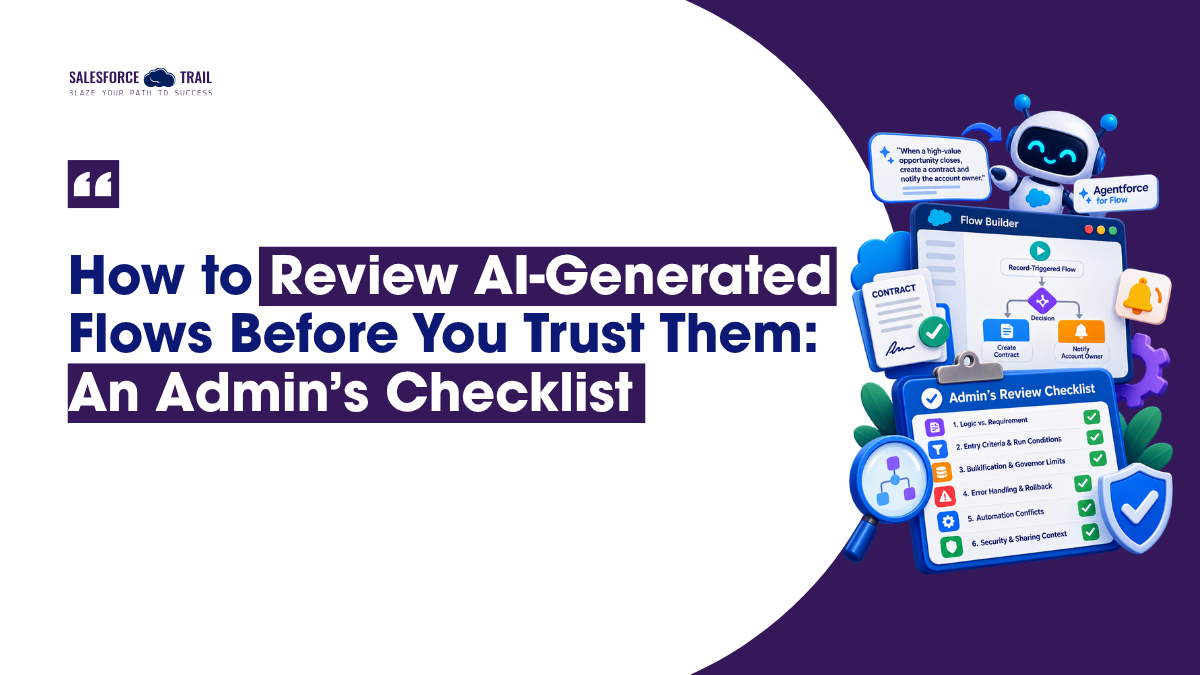
You type a sentence into Agentforce for Flow: “When a high-value opportunity closes, create a contract and notify the account owner”, and a few seconds later you’re looking at a finished record-triggered flow. You hit Debug. Green checkmark. Your cursor drifts toward the Activate button.
Stop right there.
A clean debug run indicates that the flow didn’t fail on a specific test record, but it doesn’t guarantee that it is safe to deploy to users. I have seen AI-generated flows pass debugging easily, only to silently create duplicate records in production because no one verified the entry conditions. While the build was rapid, fixing the resulting issues took a long time.
This isn’t an argument against using AI to build flows. I use it myself every week. Rather, it is a case for establishing a review habit: a concise, reusable checklist that you apply every time before moving an AI-generated flow into production. The hard truth is that, according to Salesforce’s own research, the technology’s capabilities fall short of what most admins imagine.
Table of Contents
Why “It Ran Without Errors” Isn’t Enough
To understand this, follow this mental model: AI changes how a flow is written, not how it runs.
An AI-drafted flow is bound by the same rules as one you built by hand. The same governor limits. The same order of execution. The same sharing and security context. The AI produces it faster, and with a confidence it hasn’t actually earned.
That speed is the trap. The failures that hurt – a loop that hits the SOQL limit at scale, a second flow firing on the same record update, a screen flow quietly exposing fields a user shouldn’t see – none of them show up when you debug with a single happy-path record. They show up in production on a Tuesday, when someone bulk-updates 300 accounts.
Salesforce is clear about where the responsibility sits. The official best practices for drafting flows with Agentforce state that “Agentforce needs a human in the loop” and tell you to “debug and test your flow to ensure it behaves the way you expect”. The checklist below is just a structured way of being that human.
One more reason to be careful: Salesforce AI Research published benchmark data in June 2025 measuring how often its flow-generation models produce something “ready to activate” straight out of the box. On a hard test set of complex flows, the best model landed at 48% – a number Salesforce itself calls a stringent metric, noting most of the rest are “largely accurate” and need only a few human edits per its research on agentic AI for Flow. Those “few human edits” are exactly what this checklist is designed to catch.
The 6-Point Review Checklist
Run these in order, in a sandbox, before activation. Each one follows the same shape: what AI tends to get wrong, what to look for, and how to actually verify it. The first two are about correctness. The next two are about resilience. The last two are about blast radius.
Logic vs. the Actual Business Requirement
AI optimizes for your prompt, not your intent. If your prompt was slightly loose, the flow will confidently solve a slightly different problem than the one on the ticket. It’ll reference a field that sounds right but isn’t. It’ll pick Closed Won when your org uses a custom stage value.
Look for: every field, object, and picklist value the flow touches, plus whether the logic matches the written requirement rather than the shorthand version in your head.
How to verify: use Agentforce’s Summarize option to get a plain-English description of what the flow does, then read it back against the original request. If the summary and the ticket don’t line up, the flow is wrong – no matter how clean it looks on the canvas. Spot-check the field API names against the object in Setup. This takes two minutes and catches the most embarrassing mistakes.
Entry Criteria & Run Conditions
This is where AI quietly creates duplicates. A record-triggered flow set to run on every update instead of only when a record newly meets the condition will re-fire every time anyone edits anything on that record.
Salesforce’s own guide to building a record-triggered flow spells out the consequence: without the right entry setting, “every time the description (or anything else) in a ClosedWon opportunity for an amount greater than 25000 is edited, the flow will run and create another contract”. One flow, a pile of duplicate contracts.
Look for: the “Only when a record is updated to meet the condition requirements” setting, or an ISCHANGED() check. Also confirm the before-save versus after-save choice is right.
How to verify: if the flow updates the same record that triggered it, it belongs in a before-save (Fast Field Update) path. Putting that in an after-save path is slower and can cause recursion.
Bulkification & Governor-Limit Risk
If I had to bet on a single mistake in any AI-generated flow, it’s this one: a Get, Create, Update, or Delete element sitting inside a Loop. It’s an intuitive pattern for each record: go fetch its related records, which is probably why the models reach for it. It’s also the fastest way to blow a governor limit.
Each data element inside a loop runs once per iteration. At 200 records, a Get inside the loop is 200 SOQL queries against a synchronous ceiling of 100, as the guide to avoiding flow limits lays out. It passes debug with three test records and dies in production.
The per-transaction limits worth memorizing:
| Limit | Synchronous | Asynchronous |
|---|---|---|
| SOQL queries | 100 | 200 |
| Records retrieved | 50,000 | 50,000 |
| DML statements | 150 | 150 |
| Records processed by DML | 10,000 | 10,000 |
| CPU time | 10,000 ms | 60,000 ms |
Look for: the old admin mantra “no pink in loop.” No data elements inside loops. Collect records into a collection variable, then do your DML once, after the loop closes.
How to verify: run Salesforce Code Analyzer against the flow. Its DbInLoop rule (severity High) flags exactly this. Then load-test with 200 records in a sandbox. Not one. Two hundred.
Error Handling & Rollback Behavior
AI handles errors in two ineffective ways. Either it fails to include a ‘fault path’ (an error-handling route) altogether, or it adds a fault path that technically catches the error but still allows the record that caused it to be saved. The result is a silent ‘partial commit’: half the work is done, no error appears, and no one realizes anything is wrong until the data starts looking incorrect.
Salesforce’s guide to rolling back changes after an error is clear about the behavior: “if an error sends the flow down a fault path, Salesforce completes the change that triggered the flow, even though the flow failed”, so a fault path alone doesn’t protect your data integrity.
Look for: a fault path on every data element. In a record-triggered flow, that fault path should end in a Custom Error element, which rolls the transaction back and blocks the bad save. In a screen flow, use the Roll Back Records element.
How to verify: Code Analyzer’s MissingFaultHandler rule catches elements with no fault path. Confirm your error path actually surfaces {!$Flow.FaultMessage} so whoever hits the error knows what happened. The mantra: “has a fault path” is not the same as “handles failure correctly.”
Downstream Collisions
The AI only sees your prompt and whatever metadata it grounds on. It has no idea what else is already firing on that object – the three other record-triggered flows, the Apex trigger your predecessor wrote, the ancient Workflow Rule nobody’s touched since 2019. So it builds in a vacuum, and you only discover the conflict when two automations clash over the same field.
Look for: other record-triggered flows on the same object and trigger event, Apex triggers, and any legacy Workflow Rules or Process Builder that might cause recursion.
How to verify: open Flow Trigger Explorer before you activate anything record-triggered. It shows every flow on the object, grouped by before-save, after-save, and asynchronous. Set a deliberate trigger order value if order matters. One gotcha: you can’t force an after-save flow to run before a before-save flow, no matter how low you set the order number.
Security & Sharing Context
This is the check almost nobody runs, and it’s the one that can leak data. By default, record-triggered, schedule-triggered, and platform-event flows run in system context without sharing – they ignore field-level security, object permissions, and sharing rules entirely, as the flow run context reference explains. The AI rarely calls this out. Pair that with a Get Records set to “automatically store all fields,” surface it on a screen, and you’ve potentially shown a user data they were never meant to see.
Look for the “How to Run the Flow” setting. And watch for any user-provided input that selects or edits records inside a without-sharing flow – that’s a privilege-escalation risk.
How to verify: Code Analyzer flags unsafe input handling with its PreventPassingUserDataIntoElementWithoutSharing rule. Debug the flow as a low-privilege user, not as yourself – your admin profile sees everything, which is exactly why testing as yourself hides the problem. For screen and autolaunched flows, Winter ’27 added a “User Context – Enforces User Permissions” option that keeps the flow at the running user’s access level even when a system-context process calls it. Follow least privilege – only loosen the context when your users genuinely need it.
Your Pre-Activation Ship Gate
Here’s the whole thing condensed into a gate you can pin next to your deployment process. Everything above, in the order you’d actually do it:
- Built and tested in a sandbox, never straight to production
- Summary read back against the original requirement
- Entry conditions confirmed (no run-on-every-update surprises)
- No data elements inside loops — Code Analyzer clean on DbInLoop
- Fault paths present, and record-triggered paths end in a Custom Error
- Flow Trigger Explorer checked for collisions
- Run context justified; debugged as another user
- Bulk-tested with 200 records
- Peer review for anything running without sharing or touching money, permissions, or external systems
The difference between an admin who ships AI-built flows safely and one who gets burned isn’t talent. It’s whether they can answer “why is this safe?” with evidence instead of a shrug.
Final Thoughts
Don’t file this away as something you’ll “do when there’s time.” Copy the ship gate into whatever you actually use: a Notion page, a sticky note on your monitor, a checklist in your deployment ticket template, and run it on the very next AI-generated flow you build. The first couple of times it’ll feel slow. By the fifth flow, you’ll be running all six checks in the time it used to take you to talk yourself into clicking Activate.
The job isn’t changing because AI builds the flow now. It’s changing because your value moved from building it to reviewing it well. That’s the part worth getting good at.
Frequently Asked Questions
Almost always because there’s a Get, Create, Update, or Delete element inside a Loop. Each one runs per iteration, so a few hundred records blow past the 100 SOQL or 150 DML limit. Move the data operation outside the loop and work with a collection variable.
Not by default for record-triggered flows – they run in system context without sharing, ignoring field-level security and sharing rules. Check the “How to Run the Flow” setting and test as a low-privilege user before you trust it with sensitive data.
Through Organization-Wide Defaults (and External OWD) as the baseline, plus Sharing Sets that grant access based on the user’s related Account or Contact.
Build it in a sandbox, run it through Salesforce Code Analyzer, debug it as another user (not your admin self), and bulk test it with around 200 records. Check Flow Trigger Explorer for collisions with existing automation before activating.
A data element inside a loop (the bulkification problem), closely followed by missing or incorrect error handling. Both pass a single-record debug and fail in production.
- Akanksha Shukla

- Akanksha Shukla