


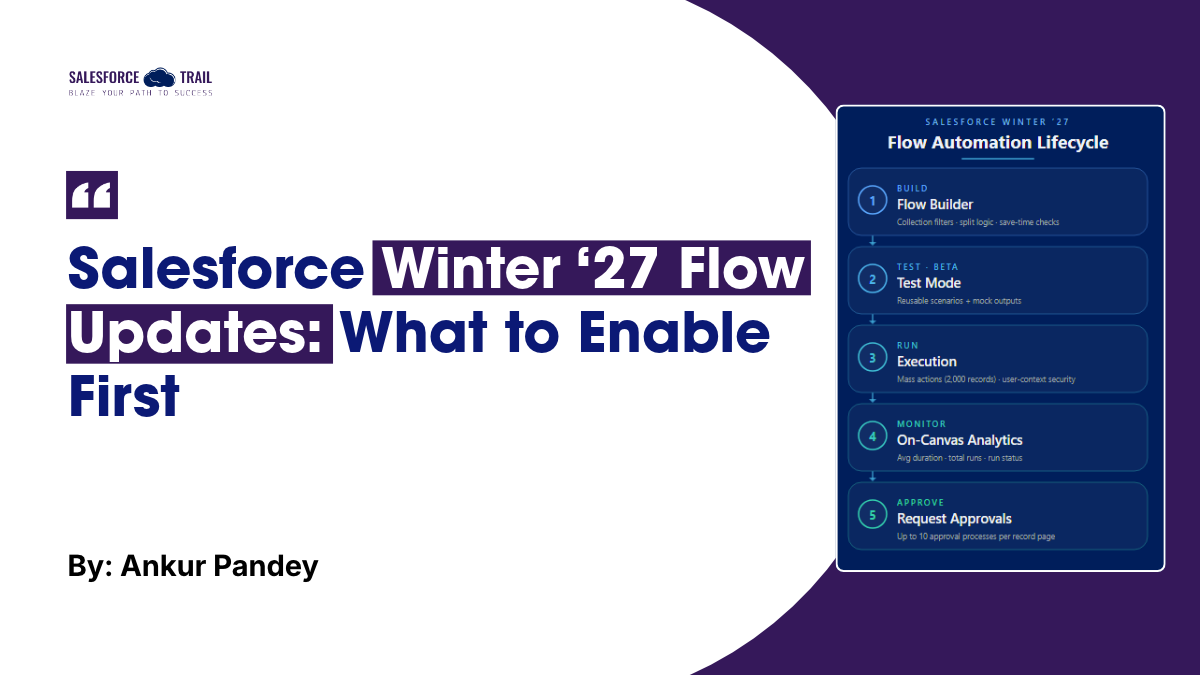
Every release brings a long list of Flow changes, and most admins read the first few and skim the rest. Winter ’27 has well over a dozen of them. A few will change how you work this quarter. Others are tidy-ups you can ignore until you have a quiet afternoon.
This is a short guide to the ones worth your time, in the order I would try them, plus one caveat about each. Check the official release notes for your org’s upgrade date before you plan anything, because the rollout happens in waves.
Key takeaways
- The three features worth adopting immediately are Test Mode (beta), screen flows as mass actions, and the automatic save-time warnings.
- User Context (Enforces User Permissions) is a security change worth auditing your subflows for, but only after a sandbox run.
- Collection Filter Criteria and on-canvas analytics are the pair that’ll make your slowest flows faster, used together.
- Flow Tags were removed from Winter ‘27, so leave them out of your plans for now.
- Rollout happens in waves. Confirm your org’s upgrade date and what’s actually available before you commit to a refactor.
Table of Contents
1. Test Mode (beta) is the biggest change
Debug mode has always been a bit awkward. You pick a record, run the flow, read the path, and then do the whole thing again after your next edit. Test Mode replaces it with something closer to a proper test. For record-triggered and autolaunched flows, you set the inputs or the triggering record, define what you expect to happen, and save the setup as a test scenario. After the next change to the flow, you run the saved scenarios instead of rebuilding the situation by hand.
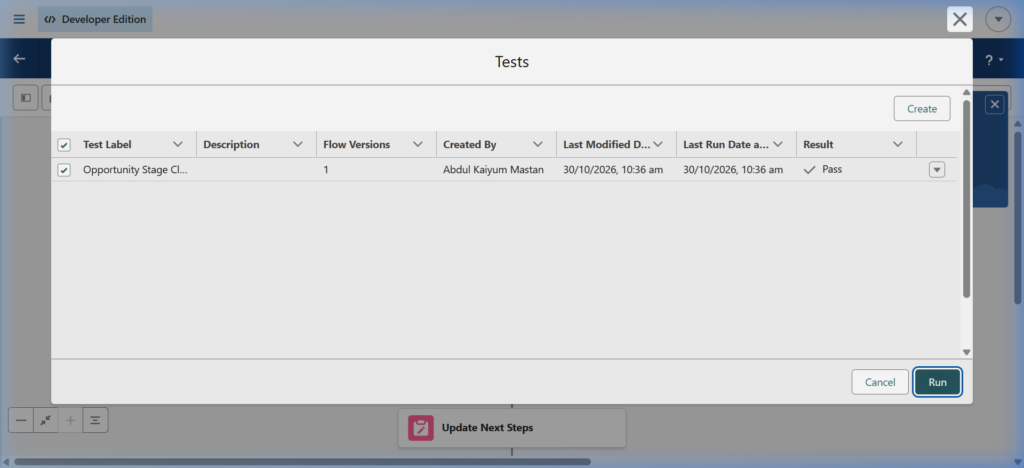
It is important to note the term ‘beta’ here. Use it for flows that are undergoing continuous change; however, do not consider this temporary state a substitute for testing with real data in a sandbox environment. It serves as a rapid feedback loop, not a release gate.
2. Screen flows as mass actions
This one is generally available, and it quietly removes a request that used to land on a developer’s desk. You can now add a screen flow as a mass quick action on a list view or a related list. Users tick the records in a data table, up to 2,000 at a time, and all the selected record IDs go into one flow as a collection.
One setup detail worth knowing: your flow needs a text collection variable named ids, marked available for input. That’s where the selected record IDs arrive.
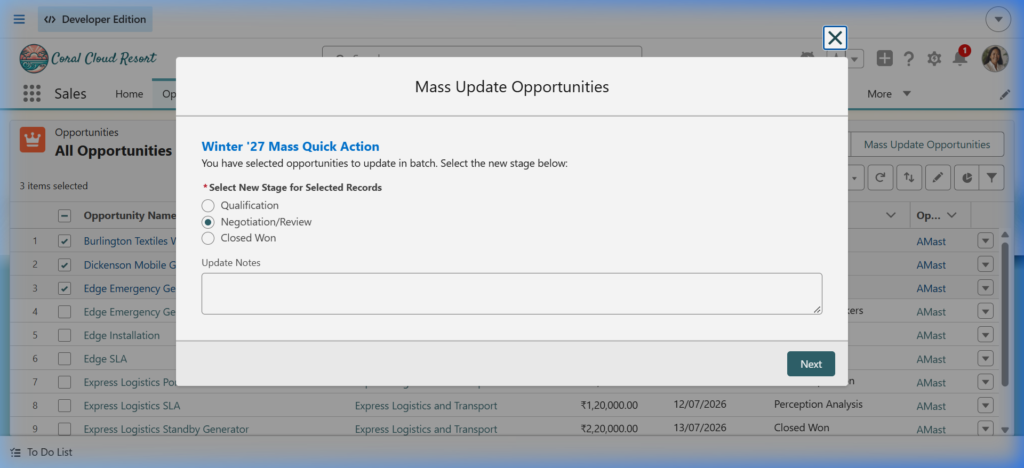
Think of the jobs people currently do with a spreadsheet and the Data Loader: reassigning a batch of cases, updating a status across a set of opportunities, adding a task to a group of contacts. If the logic is a few screens and an update, it can probably live here now.
The caveat is that your flow has to be written for a collection. If you built it to handle one record, put the Get and Update elements outside any loop and test it with a few hundred records before you hand it to a team.
3. Warnings at Save time
Two small checks will save you a few annoying failures. Flow Builder now warns you when a Create Records element is missing a value for a required field. It also checks fixed text in Assignment elements against the target field’s length limit, so a 300-character string headed for a 255-character field gets flagged before you activate the flow.
Both used to show up as a runtime fault, usually for one user in one odd case, and usually on a Friday. The length check only covers fixed text. If you are assigning a variable, Flow cannot know the value until the flow runs, so that still needs a sensible guard of its own.
4. The cleanup tools nobody will celebrate
Several of the other changes are boring and very useful if you inherited a crowded org. There is a new Unused filter in the Toolbox, so you can find the variables and resources that nothing references and delete them. You can group elements on the canvas and give each group a label and description, without turning them into subflows. A new edit history panel shows a timeline of each save, with the option to restore an earlier state as a new version or copy it into a new flow.
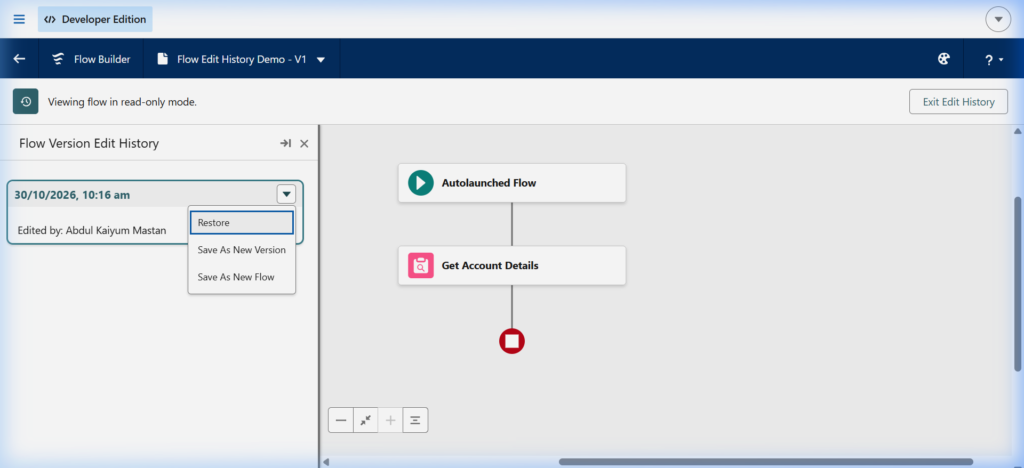
If you are looking at 40 flows named things like “Opportunity Update v2 FINAL”, start here. Clean out unused resources, group the long ones, and write a one-line description for each. It is not exciting, but it makes the next change much cheaper.
You may have read about flow tags in early previews. Salesforce pulled them from Winter ‘27 before go-live because the feature wasn’t ready, so don’t plan around them yet (Winter ‘27 change log).
A permission option worth knowing about
There is a new run option called User Context (Enforces User Permissions) for screen flows and autolaunched flows on API version 68.0 or later. It closes a gap many admins did not know about. Until now, a flow set to run in user context inherited system access if it was called by something running in system context, such as another flow or Apex. With the new option, the flow always runs with the running user’s access level, regardless of what started it.
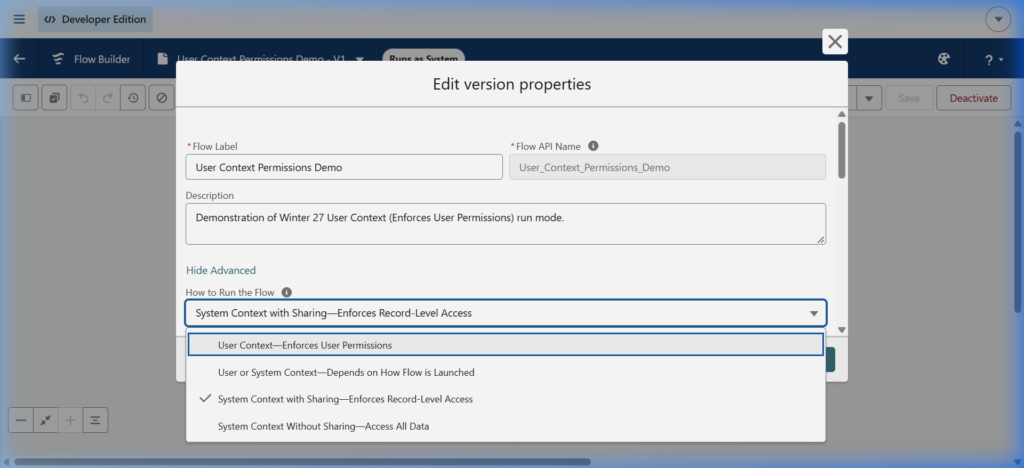
If you have subflows that you assumed were respecting permissions and sharing, this is the setting to look at. Switch it on in a sandbox first, because anything that relied on inherited system access will start failing for users who lack permission, and that is exactly what you want to find out before release.
6. Filter a collection without a Loop
If you have ever opened an old flow and found a Loop, a Decision, and an Assignment chained together just to pull a few records out of a collection, this one is for you. Winter ’27 adds a Collection Filter Criteria resource. You create it from New Resource in the Toolbox, pick the collection you are filtering, set the conditions and an optional sort order, and then use it in an Assignment element to build the filtered collection in one step. It can also filter on child relationships, for example inside an Apex-defined data type.
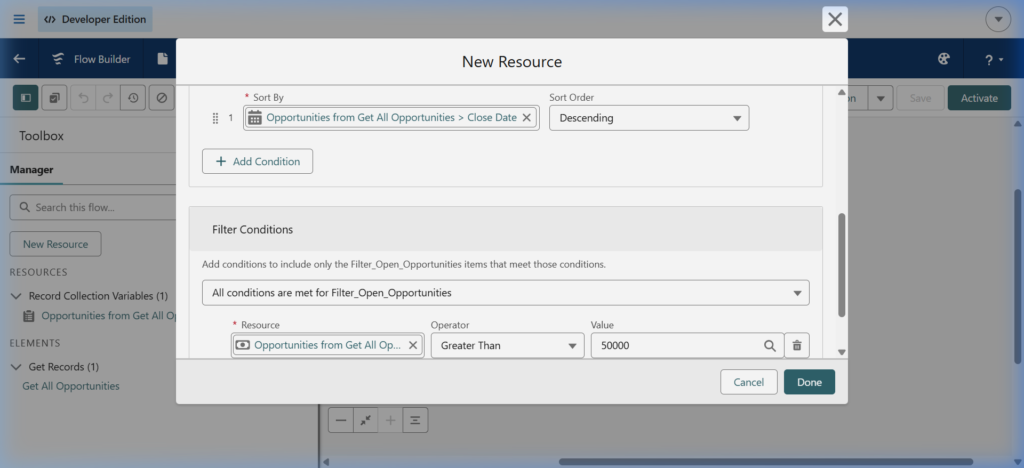
Salesforce says it runs over 200 times faster than the loop pattern, and loop-based filtering is a common cause of CPU time limit errors (Winter ‘27 release notes: Collection Filter Criteria). That alone makes it worth a look in any flow handling more than a handful of records.
The caveat is timing. It is rolling out gradually from September 2026, so it may not show up in every org on the same day. Check your sandbox before you plan a refactor around it, and change one flow at a time.
7. Performance numbers on the canvas
Finding the slow step in a flow used to mean debug logs, or a report someone built years ago. Winter ’27 puts the numbers on the canvas. Once you select Log occurrences for all flow executions in Process Automation Settings, Flow Builder shows aggregated run data on supported elements, for active flows and for inactive flows that have run before. Click an element and open the Analytics tab to see average duration, total runs, and run status.
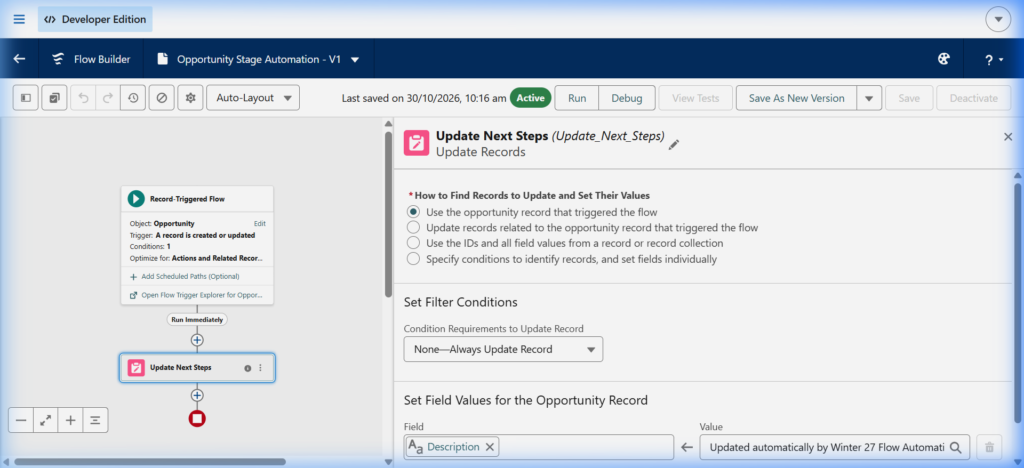
Until now this was only available for flows triggered by Data 360, so for most admins it is new. It does not cover screen flows or Flow Orchestration, and Start and End elements have no analytics.
My suggestion is to switch the logging on in a sandbox first and leave it running through a week of normal use. Then open your busiest record-triggered flow and look for the element with the highest average duration. More often than not, that is where the next fix should go.
8. Split by Field Value and Split by Date
Not every branch needs a full Decision element with hand-written conditions. When you add a Decision element in Winter ’27, you can choose one of two new decision types instead. Split by Field Value routes the flow on the value of a single field, with one path per value and a default path for everything else. Split by Date routes on the current date, using options such as Before, After, Is On, and Between, and you set the values with a simple picker.
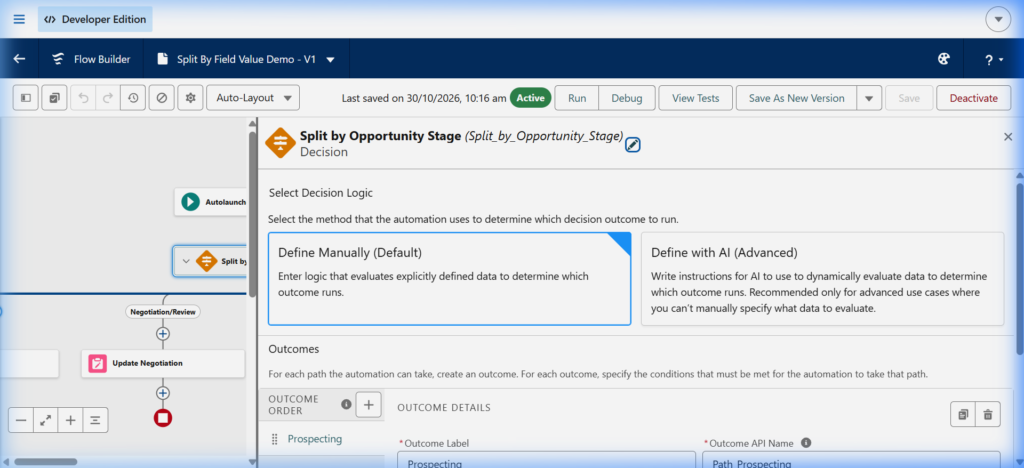
They suit the simple cases: routing by Status or Region, or changing behaviour after a cut-off date. Anyone who opens the flow later can read them at a glance, which is half the point.
The caveat is that they are deliberately limited. Each path matches one value, and there is no AND or OR logic. If two values should share a path, or the condition depends on more than one field, stay with the standard Decision element rather than stacking splits on top of each other.
9. Mock outputs for actions and subflows (beta)
If you try Test Mode, look at mock outputs at the same time. They are also in beta, and they deal with the part that makes most flow tests unreliable: the elements that call something else. In Test Mode, you click an Action or Subflow element, open Scenario Output, and select Use Mock Output. You then define what that element returns, or copy the values from an earlier debug run. When the scenario runs, the flow skips the real HTTP callout or subflow and uses your values.
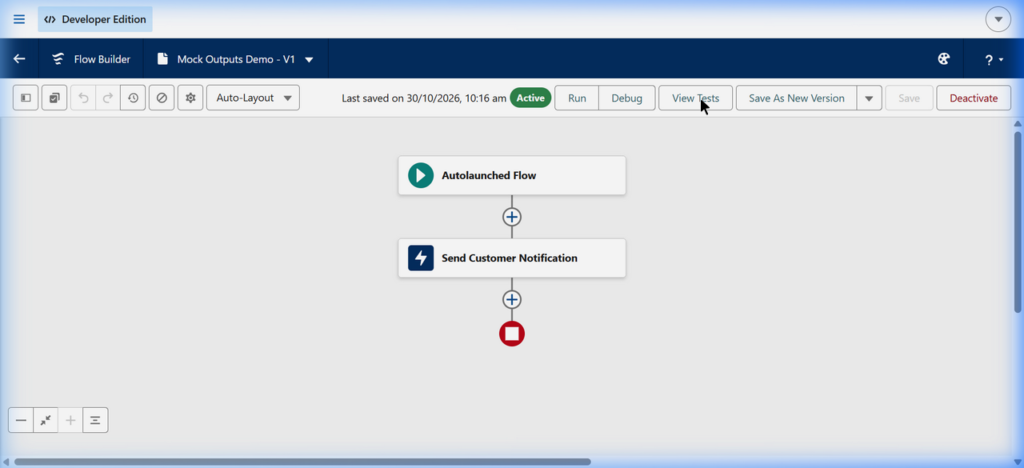
This helps with flows that call a rate-limited external API, invoke Apex with heavy dependencies, or include subflows you do not want to run during a test. It is also the easiest way to test a fault path, because you decide what the action sends back.
It works for autolaunched and record-triggered flows, and you need Flow Test Mode (Beta) switched on in Process Automation Settings. Treat it like Test Mode itself: a faster feedback loop, not a replacement for an end-to-end test in a sandbox.
10. More than one approval process on a record page
If you have ever built separate buttons or pages so users could start different approvals on the same object, this change is for you. The Request Approvals component can now offer submitters up to 10 autolaunched flow approval processes on one record page. (Jen’s top Winter ‘27 admin features).
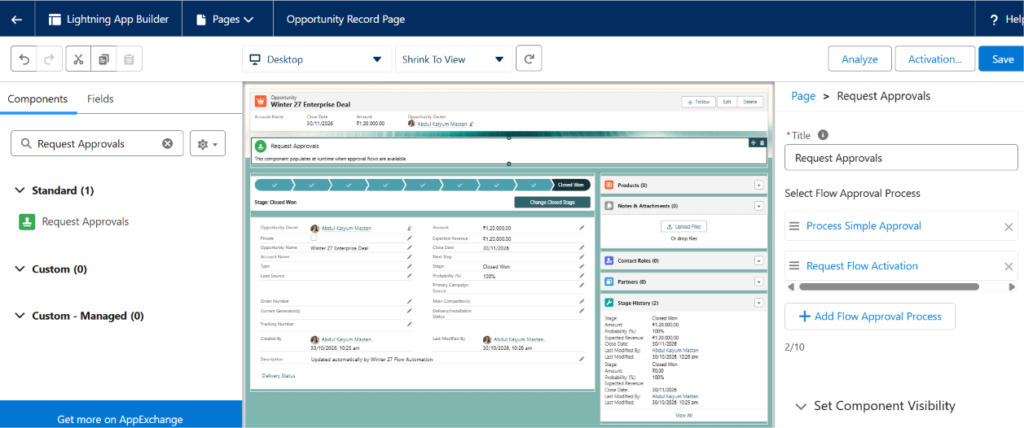
In Lightning App Builder, add the component to the record page, click + Add Flow Approval Process, and give each process a label that users will understand. For each one, you can hide submitter comments or require the submitter to select an approver. The submitter then picks the right process from the component instead of hunting for the right button.
A sensible first use is an object with two or three approval routes, such as discount approvals and contract exceptions on Opportunity. Keep the labels plain, because the people choosing are sales reps, not admins. Then test each process as a typical submitter in a sandbox before you add it to the production page.
What I would skip for now
The Cosmos theme for Flow Builder is a visual refresh. Keyboard navigation on the canvas is nice if you build all day. The Marketing Cloud items only matter if you are on the listed editions. None of these are reasons to change your plans.
A practical order of work
When the release reaches your sandbox, spend an hour on three things. Open your five most-used flows and see which new save-time warnings appear. Try Test Mode on one record-triggered flow you were already planning to change. Then pick one spreadsheet-driven task and see whether a screen flow mass action can replace it.
If you have time left, open your slowest record-triggered flow with on-canvas analytics switched on and see whether a Collection Filter Criteria resource can replace a loop. That gets you the real benefits of the release without trying to read all of them at once.
Your next step
Don’t wait for the production upgrade to start. The moment Winter ‘27 lands in your sandbox, pull up your single slowest record-triggered flow, switch on on-canvas analytics, and give it a week of normal use. When you come back and see which element is eating the most time, you’ll know exactly where the first real fix belongs, and you’ll have something concrete to show for the release instead of a reading list.
Sources
Frequently Asked Questions
It rolls out in waves, so your date depends on your instance. Check the Salesforce Trust status page and the official release notes for your specific org rather than assuming a single global date.
No. The Test Mode is in beta. You enable it in Setup under Process Automation Settings with the Enable Flow Test Mode (Beta) checkbox, and it covers record-triggered and autolaunched flows.
Up to 2,000 selected records at once, passed into the flow as a collection through a text collection variable named ids.
No. Salesforce removed Flow Tags from the Winter ‘27 release before go-live because the feature wasn’t ready. Keep using naming conventions and resource descriptions for now.
On API version 68.0 or later, User Context (Enforces User Permissions) makes a flow run with the running user’s access level no matter what started it, closing a gap where a user-context flow could inherit system access from an Apex or flow caller.
Salesforce states it runs over 200 times faster than filtering with Loop elements, which also makes it a useful fix for flows hitting CPU time limits.
Ankur Pandey
Ankur Pandey leads marketing at Ashapura Softech, a Salesforce and Zoho implementation partner with teams in the USA and Ahmedabad. He works closely with the firm’s Salesforce delivery team and writes about keeping business systems maintainable.