



In today’s digital world, working for long hours on bright screens can be exhausting. If you’re a Salesforce user looking for a more comfortable viewing experience, switching to dark mode might be just what you need. In this guide, we’ll show you how to turn Salesforce into Dark Mode in easy steps, with clear, user-friendly instructions that are perfect for admins, developers, and everyday users alike.
Why Use Dark Mode in Salesforce?
Before diving into the how-to, let’s talk about the why. Dark mode is more than just a trend; it can enhance your user experience in multiple ways:
- Reduces eye strain during long work sessions
- Improves battery life on OLED screens
- Offers a modern, sleek interface
- Easier on the eyes in low-light environments
Whether you’re logging into Salesforce Lightning or working through Salesforce mobile, dark mode can add comfort and style to your workday.
How to Turn Salesforce into Dark Mode on Desktop
Although there’s no official toggle in the Salesforce settings, here are three reliable methods to experience dark mode in Salesforce Lightning:
Use Google Chrome Dark Mode Extension
If you use Chrome to access Salesforce, this is the easiest option.
Steps:
- Go to the Chrome Web Store.
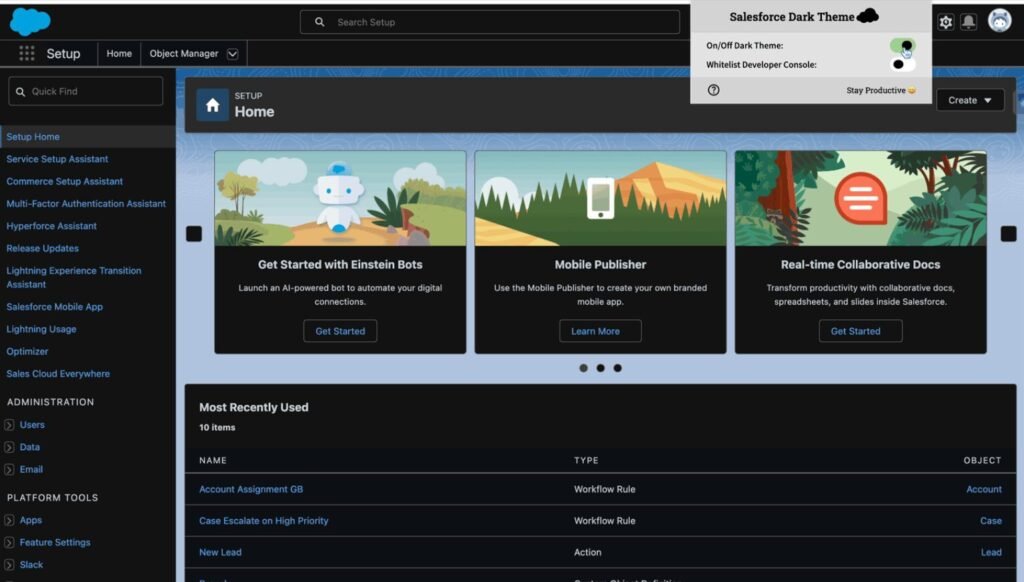
- Search for and install a trusted extension like “Salesforce Dark Theme.”
- Once installed, turn it on.
- Navigate to Salesforce and enjoy the dark theme.
Bonus Tip: You can whitelist specific websites and adjust brightness/contrast to your liking.
Enable Dark Mode in Chrome or Edge Flags (Experimental)
Some browsers allow you to force dark mode on web content.
Steps for Chrome:
- Type chrome://flags in the address bar.
- Search for “Force Dark Mode for Web Contents”.
- Set it to Enabled.
- Restart your browser and reload Salesforce.
Note: This may impact the appearance of other websites. Use with caution.
Use Custom CSS or Themes (For Advanced Users)
If you’re a Salesforce admin or developer, you can style your Lightning Web Components (LWC) with custom themes for internal users. This requires code customization and may only apply to components you build yourself.
How to Enable Salesforce Dark Mode on Mobile
Good news—Salesforce mobile supports native dark mode!
Steps (iOS & Android):
- Go to your device settings.
- Switch your phone’s display to dark mode.
- Open the Salesforce app, and it will automatically reflect the dark interface.
This method offers a smooth and consistent experience, especially when you’re working on the go.
Is Native Dark Mode Coming to Salesforce?
As of now, Salesforce does not offer an official dark mode feature built into the platform. However, the demand from the community is growing steadily. Many users have submitted requests through the Salesforce IdeaExchange, and there’s ongoing discussion within the developer and admin forums.
While there’s no confirmed timeline, Salesforce has a strong track record of listening to user feedback. With dark mode becoming a standard across modern applications, Salesforce will likely introduce native support in a future release, especially for Lightning Experience.
Until then, browser extensions, system-level dark settings, and custom theming remain the best ways to achieve a dark interface.
Key Considerations Before You Enable Dark Mode
While turning Salesforce into dark mode can enhance your user experience, here are a few important points to keep in mind:
- Browser Extensions Vary: Not all dark mode extensions offer the same level of compatibility. Test a few options to see which one works best with your Salesforce layout.
- Partial Theme Coverage: Custom themes applied through Salesforce Setup may not fully transform every element, especially when using third-party apps or components.
- Use Trusted Tools Only: Always install extensions from verified sources like the Chrome Web Store. Avoid tools that request unnecessary permissions.
- Test in Sandbox First: Before rolling out any changes across your organization, try them in a sandbox environment to ensure they don’t impact usability or appearance.
- Stay Updated: Keep an eye on Salesforce updates, as future releases may offer native dark mode support or improved compatibility.
Final Thoughts
Although Salesforce doesn’t have a dark mode feature yet, these alternatives provide a useful solution. Whether you’re customizing your environment with browser tools or enjoying dark mode on mobile, you’re improving usability and reducing eye fatigue—an upgrade your future self will thank you for.
Salesforce is all about personalization and productivity. By adopting dark mode, you’re taking another step towards a more user-friendly and customized experience.
Must-Visit Links:
- How to Crack the Salesforce Interview: Real Questions and Tips from Experts
- How Much You Can Earn as a Salesforce Consultant in 2025?
- Top Most In-Demand Salesforce Skills for 2025: What Professionals Need to Know
- The Importance of Hands-On Experience in Mastering Salesforce Skills
- How I Passed the Salesforce Data Architect Exam on My First Attempt
- How to Prepare for the Certified Agentforce Specialist Certification Exam
Resources
- [Salesforce Developer]- (https://developer.salesforce.com/)
- [Salesforce Success Community] (https://success.salesforce.com/)
For more insights, trends, and news related to Salesforce, stay tuned with Salesforce Trail
Mark Jacobes is a seasoned Salesforce expert, passionate about empowering businesses through innovative CRM solutions. With over 6 years of experience in the Salesforce ecosystem, Mark specializes in Salesforce development, integrations, and digital transformation strategies.
- Mark Jacobeshttps://salesforcetrail.com/author/markjacobes/
- Mark Jacobeshttps://salesforcetrail.com/author/markjacobes/September 15, 2025
- Mark Jacobeshttps://salesforcetrail.com/author/markjacobes/