


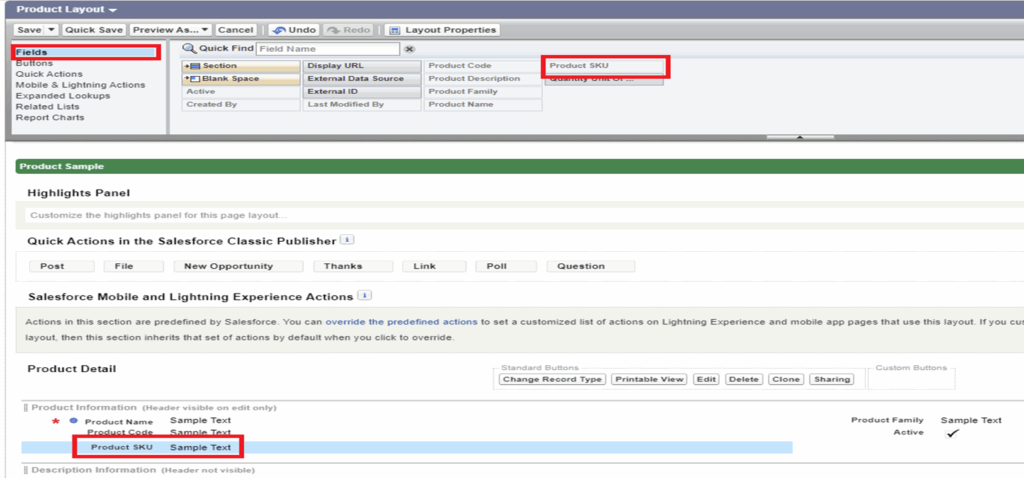
- Click Related Lists
- Drag Categories and Commerce Entitlement Policies down to the Related Lists section
- Click Save

- Update Order Summary Page Layout:-
– Go to Setup → Object Manager → Order Summary → Page Layouts → Order Summary Layout
– Scroll down to the section Salesforce Mobile and Lightning Experience Actions and click on override the predefined actions - Remove all actions except Start Reorder by dragging them to the top
- Click Save

- Update Order Delivery Group Summary Page Layout:-
– Go to Setup → Object Manager → Order Delivery Group Summary → Page Layouts → Order Delivery Group Summary Layout
– Go to Related Lists → Order Product Summaries → Click on the wrench icon
– Add Product Name field into the list of displayed columns using the right chevron button
– Click the OK button and Save
Update Account Page Layout:-
– Go to Setup → Object Manager → Account → Page Layouts → Account Layout
– Click on the override the predefined actions link in the Salesforce Mobile and Lightning Experience Actions section, and if Enable as Buyer is not present, drag it into the section


- Click Related Lists and drag the following items into the Related Lists section
1. Contact Point Addresses
2. Community Members
3. External Managed Accounts
4. Carts - Click Save

- Update Contact Page Layout:-
– Go to Setup → Object Manager → Contact → Page Layouts → Contact Layout
– Click on the override the predefined actions link in the Salesforce Mobile and Lightning
– Experience Actions section, and if the following are not present, drag them into the section from the top:-
1. Enable Customer User
2. Disable Customer User
3. Log in to Experience as User

9. Add Buyer Info to Lightning Page using Lightning App Builder
- Go to the Commerce app using the App Launcher (9 dots button at top left)
- Navigate to the Accounts tab from the main Lightning navigation
a. List view: All Accounts - Click the label for any Account
- Click on the Setup Gear (top right) and click Edit Page, which will launch the Lightning App Builder

- Search for the Buyer Account component (on left) and drag it to the bottom of the page
- It should look like this at the bottom after dragging it out
- Click the Save button (top right)
- Click the Activate button
- Click the Assign as Org Default button (at left)
- Choose Desktop and Phone
Click the Next button and Save

10. Clone the following default Permission Sets:-
- Buyer → B2B Commerce User
- Buyer Manager → B2B Commerce Super User
11. Finalize Commerce App Setup
- Go to Setup → Field Accessibility
- Click on Order
- Click on View by Fields
- Choose Sales Store
- Click the link right of System Administrator (Hidden underlined) and set or verify as follows:-
a. Visible:-Checked
- Add the Sales Store field to the Order Layout page layout:-Selected
- Click Save

Go to App Launcher and verify that you can view the Commerce App

12. Store Creation with B2B Template
- Go to App Launcher → Commerce
- Click Stores in the main app navigation
- Click the Create a Store button (top right)

- You should eventually land on the B2B Commerce template selection page
- Select the B2B Commerce template


- Enter your Store Name ( Mandatory ) and URL ( Optional )

- Click the Create button

13. Load Data to Your Org ( IMPORTANT )
- Add Products, Catalog, Categories & Media ( CMS
- Create Accounts & Related Contacts
- Enable the Accounts as Buyer Accounts (created above)
- Create Buyer Groups and assign the Buyer Accounts (created above)
- Create Price Books & Price Book Entries and Add Products (loaded above)
- Create an Entitlement Policy (s)
– Assign this Entitlement Policy to Products (loaded above)
– Assign this Entitlement Policy to Buyer Groups (created above) - Rebuild Search Index
- Return to your B2B store page and ensure that the first four steps are marked as completed, as shown in the following image:-

14. Modify Content Security Policy
- Locate your B2B store record in the Commerce App
- Click the Experience Builder tile in the Store page
- Click Settings ( gear icon on left)

- Click the Security & Privacy Tab
- Change the Security Level to Relaxed CSP and click the Allow button if prompted.

15. Adjust Site Membership
- Go to the B2B store’s Experience Builder → Administration from the top left navigation menu → Members
- Add the following Profiles in the Selected Profiles Box – System Administrator and Customer Community Plus User
- Click Save

16. From Setup → Quick Find: CSP Trusted Sites
- Click the New Trusted Site button
- Trusted Site Name: Enter a suitable Name
- Trusted Site URL: Name of the website ( i.e., Third-party API )
- Active: Checked
- Allow site for img-src: Checked

17. Clone Checkout Template
- Go to Experience Builder → Select Checkout in the list of Pages → Access Checkout Flow Template

- Click the Edit Flow in Flow Builder button (on the right when the menu pops up)
- Once the All Flows setup page launches, click on the Checkout Flow Template label
- Click the Save As button and complete the form:-
– Flow Label:- Enter any meaningful Name
– Flow API Name:– Enter any meaningful Name - Click the Show Advanced label and complete the form:-
– How to Run the Flow: System Context with Sharing—Enforces Record-Level Access
– Type: Checkout Flow - Click the Save button and Activate

- Change the Checkout Component Mapping by going back to the browser tab containing Experience Builder
- Click on the Checkout Flow component again to bring up the panel
- Checkout Flow Name:- Name of the Flow Given in the Previous Step
- Close by clicking the ‘X’ (top right)
- Click Publish (at top right) and click Publish again on the dialog, followed finally by the Got it button
- You should eventually receive an email confirmation

18. Register Reference Implementation Classes
- Create Integration Apex Classes for the four key providers ( Copy the code from the GitHub repository ) –
– Shipping (B2BDeliverySample)
– Inventory (B2BCheckInventorySample)
– Tax (B2BTaxSample)
– Pricing (B2BPricingSample) - Create the Heroku Remote Site Setting
– Name: herokuapp
– Remote Site URL: https://b2b-commerce-test.herokuapp.com
– Disable Protocol Security: Unchecked
– Active: Checked - Register all four Integration Apex Classes (created above) with Workbench
- Please refer to the following section – Register the Integration Apex Classes
– PLC Curriculum – B2B Commerce – Deploying the Storefront
19. Store Integration Service Mappings
- Navigate to your B2B store’s record from the Commerce App → Stores
- Click on the Administration tile
- Link all the classes as Registered External Services by clicking the Link Integration in the sections listed on the left, then Next, and then Confirm
20. Activate the Store
- Go to App Launcher -> Launch Commerce App
- Choose Stores from the Lightning Navigation
- Click on Capricorn B2B Store
On the right, next to Get Ready to Activate, click on Let’s Do It! - Scroll down and click the Activate button

Create a new Billing Contact Point Address for your Accounts
- Go to Commerce App → Accounts → Select the Account ( created in Step No. 13, Slide No. 16 )
- Click the Related tab to access the related list entries for the Account
- Click the New button in the Contact Point Address related list
- Create the new Contact Point Address for Billing as follows:-
– Name: Main Billing Address
– Address Type: Billing
– Is Default Address: Checked
– Parent: Pre-Selected Account
– Address/City/State/Zip/Country: Give any meaningful address
– Click the Save button - Repeat the above step to create a new Shipping Contact Point Address for the same.
- Account mentioned above
Assign the appropriate Permission Sets to Buyer(s)
- – Go to Setup → Users
– Click on the User who has the Customer Community Plus license ( i.e., who is a B2B Buyer )
– Click the Permission Set Assignments label
– Click the Edit Assignments button in the Permission Set Assignments section
– Assign the following Permission Sets:-
– B2B Commerce User
– B2B Commerce Super User - Click the Save button
- Log in to the B2B Store as a Buyer from the Contact Detail Page by clicking on :-
– Log in to Experience as User (top right)
OUR B2B Commerce Website is Ready Now. Let’s Proceed for Checkout
.




Rahul Krishan
A Senior Salesforce Developer with 7+ years of experience in Salesforce implementation and development. Rahul is skilled in LWC, Aura, Visualforce, and Data Migration, with strong technical expertise and a proven track record of delivering scalable solutions on time. He’s a true team player who thrives under pressure while ensuring best practices.