





If you’ve built an Agentforce agent, you’ve probably watched a user explain the same preference three conversations in a row. The agent helps, the session ends, and next time it has no idea who it’s talking to. Agent Memory is Salesforce’s fix for that. It lets an agent retain useful details from past conversations and reuse them later, so people don’t have to repeat themselves.

I turned it on in one of my own Employee Agents to see how it actually behaves, not just what the release notes promise. This guide covers what it is, how to switch it on in Agent Script, how users manage what’s stored, and the limits worth knowing before you ship it.

Table of Contents

What Agent Memory actually is (and what it isn’t)

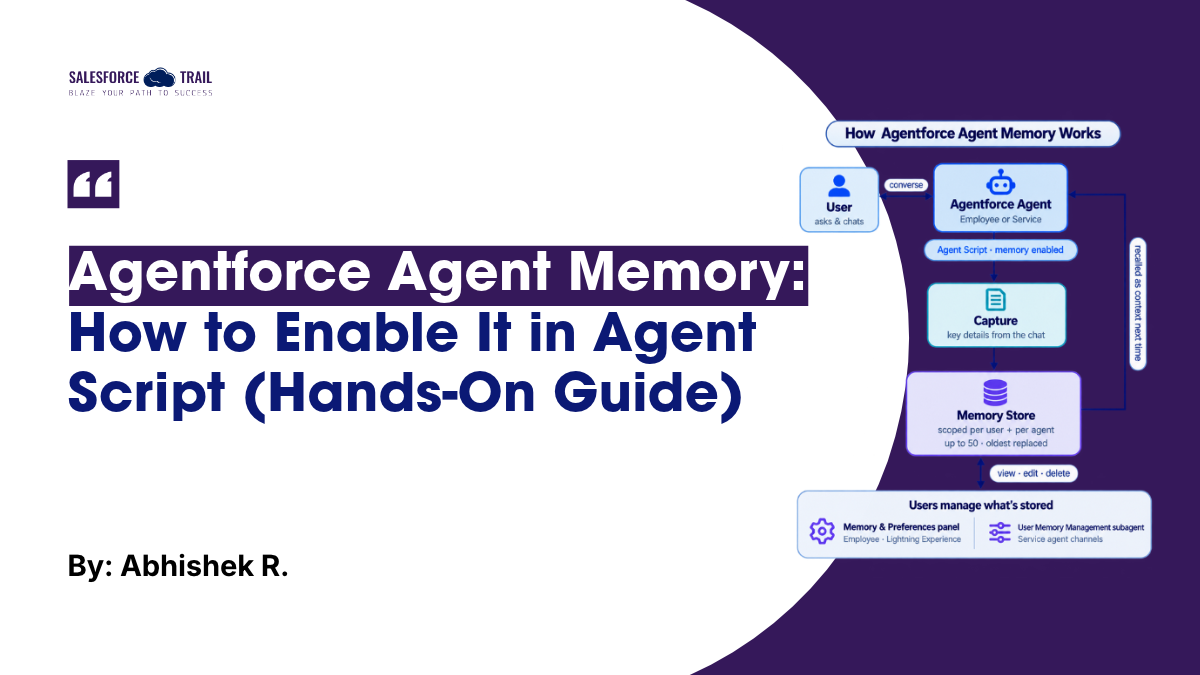
Agent Memory lets supported Agentforce agents save relevant details from a user’s conversations and use them as context later. Think user preferences, work context, or the state of an ongoing support request. The point is simple: less repetition, more relevant answers.

Two design details matter. First, memories are scoped per user and per agent. A memory one agent creates isn’t automatically handed to another agent, and one user’s memories never cross into another’s. Second, user profile context is a separate thing. Fields like a user’s name, email, locale, or time zone come from their profile, not from memory, so the agent can address someone correctly without having “learned” it in a chat.

Agent Memory vs. Agentic Memory & Context

People often get confused here, so it is best to be clear. Salesforce offers two distinct memory features with names so similar that they confuse.

Agent Memory, the feature in this guide, is configured in Agent Script, managed from the Memory & Preferences panel, and capped at a set number of memories per user. It’s the straightforward, builder-level option.

Agentic Memory & Context is a separate, Data 360-based capability. It’s API-first, set up by registering agents in a data space, and built for cross-agent conversation context at scale. If the material you’re reading talks about registering agents in Data 360, you’re looking at the other feature.

Before you start: prerequisites and editions

A few things need to be true before Agent Memory does anything.

  • You’re working in the new Agentforce Builder, not the legacy one. Memory is enabled through Agent Script, which lives in the new builder.
  • Your agent is an Employee or Service agent. These are the two agent types Agent Memory supports.
  • Users opt in. Memory capture starts only after the user turns it on, with a difference between Employee and Service that I’ll cover below.

On editions: Agent Memory is available in Lightning Experience, in Enterprise, Performance, Unlimited, and Developer editions. Required add-on licenses vary by agent type, so check what your Agentforce setup already includes before you promise this to stakeholders.

How to enable Agent Memory in Agent Script

Enabling memory is a small block in your agent’s script. In the context section, you switch on memory. Here’s the shape of it:

				
					context:
  memory:
    enabled: true
  user_profile:
    enabled: true


One thing to watch: keep your booleans lowercase (true / false). Agent Script follows the usual convention here, and mixing True and true in the same block is the kind of small inconsistency that’s easy to copy by accident.

That is all it takes to enable this feature at the agent level. Once activated, the system identifies information during a conversation that is worth retaining, and stores it as ‘memories’ associated with that specific user and agent.

Turning on user profile context

The user_profile block works differently from memory, even though the two sit side by side. With user_profile enabled, the agent can pull a user’s name, email, locale, and time zone from their Salesforce profile to personalize the conversation, without the user stating any of it. You can run memory and profile context together, and in most Employee Agent setups you’ll want both on.

Managing memories in the Memory & Preferences panel

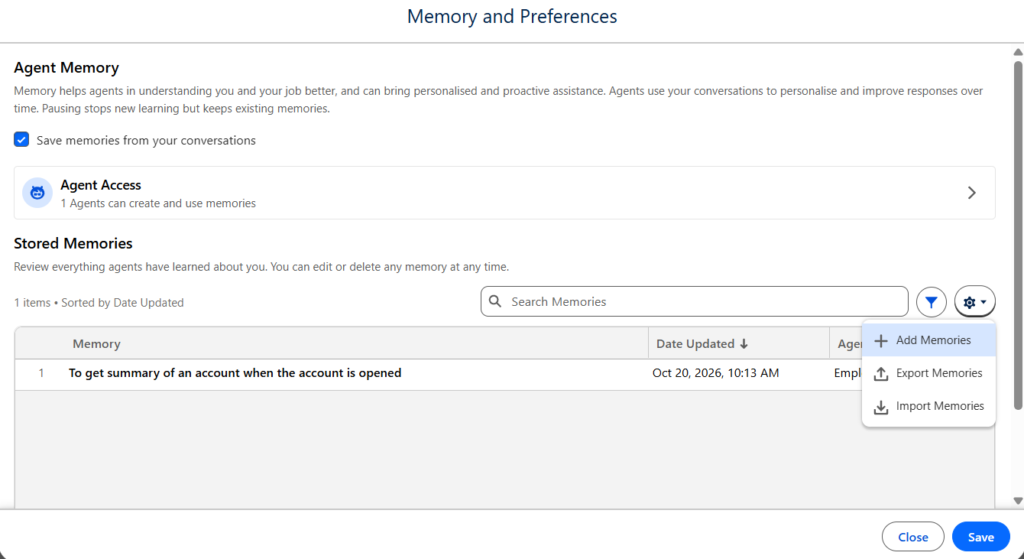
For employee agents in Lightning Experience, users manage everything via the ‘Memory and Preferences’ panel. This is where the feature shifts from an abstract concept into something tangible, allowing people to see exactly what an agent knows about them.

Memory & Preferences panel
The Memory & Preferences panel

From the panel, a user can:

  • Choose which agents are allowed to create memories from their conversations.
  • View, search, and filter stored memories.
  • Edit a memory that’s inaccurate or out of date.
  • Add a memory manually.
  • Delete a memory they no longer want used.
  • Import or export memories.

That’s a broader set than people expect. It’s tempting to describe this panel as just “add, import, export,” but edit, delete, search, and the per-agent access toggle are all right there too, and those are the controls that matter most for trust and data hygiene.

Managing memories conversationally (Service agents)

Service agents don’t get a panel. If someone is chatting with an agent on a website, portal, or messaging channel, they can manage memory by talking to it after you’ve added the User Memory Management subagent. They can ask what it remembers, tell it to forget something, or turn memory off, all in natural language. There’s no separate disclaimer or opt-in screen on Service channels, so if you want users to control memory there, you have to implement that conversational management yourself.

The User Memory Management subagent

If you want users to manage memory through conversation, the User Memory Management subagent is the piece that makes it possible. It handles only the memories this agent stores about the person speaking, and whether that storage is on. Add it, and the agent can view, create, update, or delete stored memories and check or toggle memory storage on request.

It ships with four standard actions:

  • Get User Memories — retrieves the collection of memories for a specific user and agent.
  • Manage User Memory — uses generative AI to create, update, or delete a memory based on the conversation.
  • Get User Memory Preference — checks whether memory is on for this user and agent.
  • Update User Memory Preference — enables or disables memory for the current user and agent.

Live test: watching the agent remember

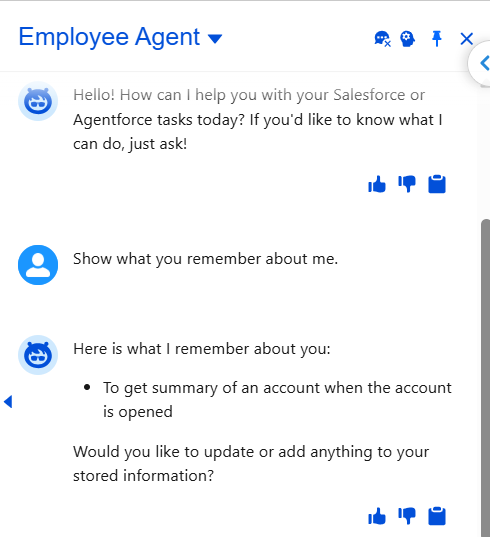
Documentation is one thing; watching it work is another. So I opened my Employee Agent and asked it straight: “Show what you remember about me.”

Employee Agent

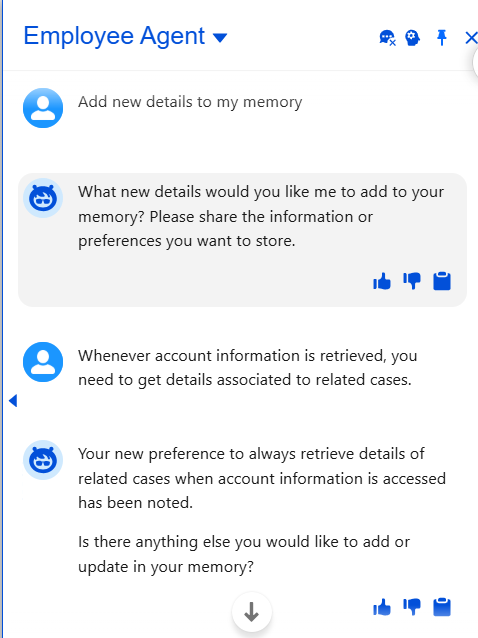
This brought back a memory: providing a summary whenever an account is opened. Well, that was exactly what I had taught previously. Then, I added something new. I instructed, “Whenever account information is retrieved, you must also retrieve details regarding any associated cases.” The agent confirmed it: my new preference to always retrieve related-case details when account information is accessed had been noted.

Employee Agent
Asking the agent what it remembers, then adding a new preference by chat.

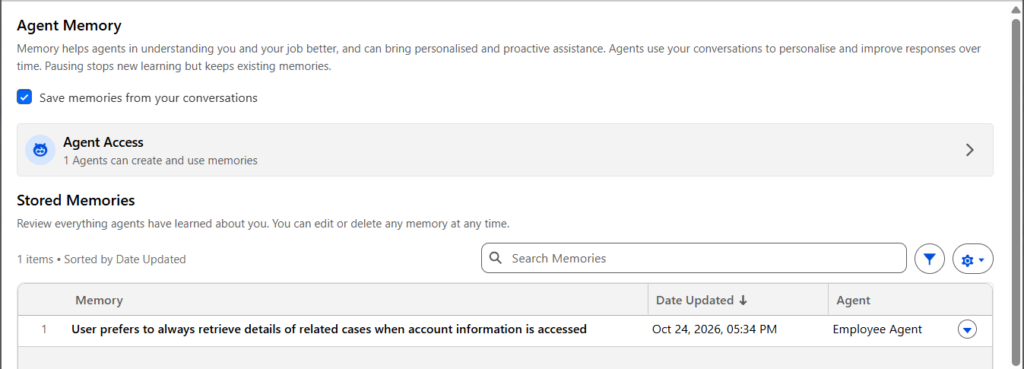
The satisfying part came next. Back in the Memory & Preferences panel, the new memory appeared in the Stored Memories list, timestamped and attributed to the Employee Agent. A few days later, it was still there, and the agent was surfacing recommendations based on it, offering to retrieve related cases when I opened an account. That’s the whole promise of the feature in one loop: say something once, have it stick, and watch it shape later conversations without re-explaining yourself.

image5 1

Now we have recommendations available based on memory.

image4 1
The new memory in Stored Memories, with recommendations the agent surfaced from it.

Limits and Behavior you should know

A few rules shape how far you can lean on this feature.

  • 50 memories per user, per agent. That’s the cap. When it’s reached, the oldest memories are automatically deleted to make room for new ones, so old context quietly fades.
  • Disabling memory doesn’t delete it. Turn memory off, and existing memories are preserved, not wiped. Switch it back on, and they’re available again.
  • Opt-in differs by agent type. For Employee agents in Lightning Experience, capture starts only after the user opts in. On Service channels, there’s no separate disclaimer or opt-in step, so conversational management has to be configured if users are meant to control their own memory.

The practical takeaway: treat the 50-memory cap as a reason to keep memories meaningful, and tell users to review their stored memories now and then and clear out anything stale.

So, is it worth turning on?

For Employee agents that people use repeatedly, yes. The setup cost is almost nothing, a few lines of Agent Script, and the payoff is an agent that stops asking the same questions every session. The honest caveats are the 50-memory ceiling and the fact that Service channels need you to build the management experience yourself. Go in knowing both, keep an eye on what’s being stored, and Agent Memory earns its place quickly.

Salesforce Resources

Frequently Asked Questions

Agent Memory lets an Agentforce agent save relevant details from a user’s past conversations and reuse them as context later, so users don’t repeat themselves.

Enable it in Agent Script by setting enabled: true under memory inside the context block of your agent, in the new Agentforce Builder.

Up to 50 per user, per agent. When the limit is hit, the oldest memories are deleted automatically to make room for new ones.

No. Agent Memory is the builder-level feature set up in Agent Script. Agentic Memory & Context is a separate, Data 360-based, API-first capability.

No. Disabling memory preserves what’s already stored. Re-enable it and those memories become available again.

Yes. Employee agent users manage memories in the Memory & Preferences panel in Lightning Experience; Service agent users do it conversationally once the User Memory Management subagent is added.

Abhishek R
Abhishek R
Salesforce Consultant, Administrator, and Business Analyst – r.abhishek2305@gmail.com

I’m Abhishek R, a Salesforce Consultant, Administrator, and Business Analyst with around 4 years of experience delivering end-to-end CRM solutions. I have worked across Sales Cloud, Service Cloud, Field Service, Pardot, Data Cloud, Marketing Cloud, and CRM Analytics, helping businesses streamline operations, enhance customer engagement, and make data-driven decisions. I specialize in Apex, Flows, integrations, and platform management, with proven success in AgentForce implementations, AI-driven automation, and cross-cloud solutions. I hold 6 Salesforce Certifications and am a proud 5⭐ Ranger on Trailhead, constantly learning and exploring the latest Salesforce innovations. Passionate about solving real-world business problems, I focus on building scalable solutions, driving adoption, and enabling continuous improvement.

Share.
Leave A Reply

Exit mobile version