





Let’s Build a Simple Slack Automation
Now that you understand the basics, let’s create a simple yet practical workflow.
Use Case:
Whenever a message is added to the Slack Channel “help_channel”, it should notify the user “Abhishek” and react to the message.
Let’s split the use case based on components in the Slack workflow
- Trigger – When a message is added to the channel
- Steps – Notify the user “Abhishek”
- Steps – React to the message
Let’s build it.
Step 1 – Go to Workflow Builder. We have two options to build a workflow in Slack. We can make use of standard templates available (If you have multiple apps installed in Slack, you can access templates provided by those connected apps)
If you are unable to view tools directly, click the more button available –
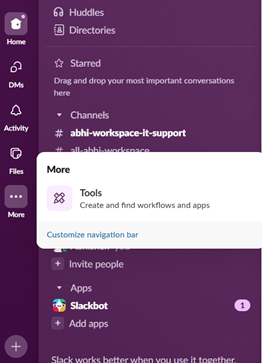

Let’s go ahead and create a brand-new automation.
Click on the new button at the top right to create a new workflow.
Note: Workflow creation is available only in the Pro version. It’s not available in the free version.

Few available triggering event options –

Here, we will select Slack, and the event on Slack is “When a message is posted.”
You also have an option to filter the conversation based on certain words or phrases.

Step 2 – What to do? Here, we need to notify the user and react to a message.

Slack offers a wide range of options that can be performed when an action is triggered (as shown above). We will use the “Send a message to a person” option.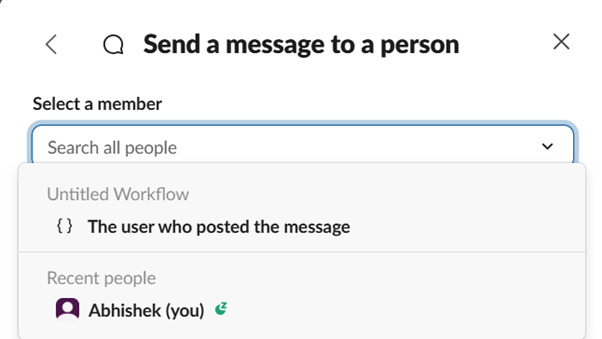
Here, you have the option to notify either the same user who triggered the workflow or a specific user. This can be customized to fit your needs.
Personalization plays a key role in every message. Slack offers a wide range of personalization options that can be applied here. Simply click on “Insert a new variable” to personalize your data.
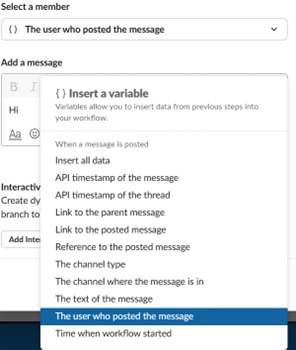
Let’s select “The user who posted the message”
This is what is referred to as a variable (The one that is defined initially as components available in Slack)
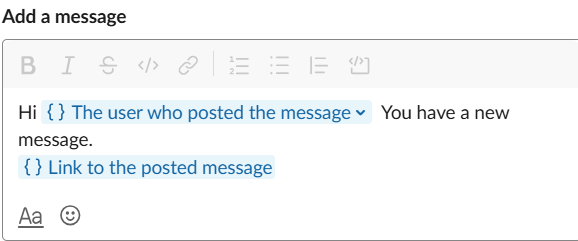
I will add another step similarly.
Workflow is ready now to show the magic –

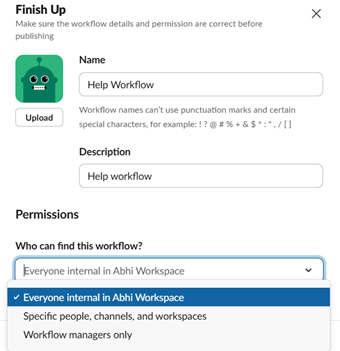
Save the workflow with your desired name, and click on ‘Finish Up.’ That’s it
Control access in the finish-up section and then hit save.
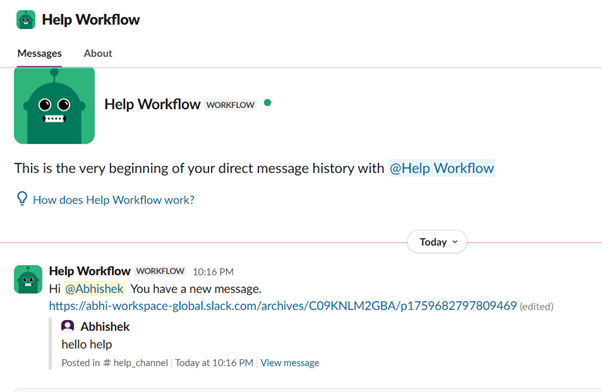
Now let’s test –

The message is added, a personal message is sent from the Help Workflow (the workflow we just published), and an emoji reaction is added.
In just a few clicks, we built an amazing workflow-based automation that can change the lives of many users who do manual tasks in Slack.
The above one is a simple use case of Slack Workflow.




Abhishek R
I’m Abhishek R, a Salesforce Consultant, Administrator, and Business Analyst with around 4 years of experience delivering end-to-end CRM solutions. I have worked across Sales Cloud, Service Cloud, Field Service, Pardot, Data Cloud, Marketing Cloud, and CRM Analytics, helping businesses streamline operations, enhance customer engagement, and make data-driven decisions. I specialize in Apex, Flows, integrations, and platform management, with proven success in AgentForce implementations, AI-driven automation, and cross-cloud solutions. I hold 6 Salesforce Certifications and am a proud 5⭐ Ranger on Trailhead, constantly learning and exploring the latest Salesforce innovations. Passionate about solving real-world business problems, I focus on building scalable solutions, driving adoption, and enabling continuous improvement.