



Salesforce’s Winter ’26 release is packed with powerful updates to Salesforce Flow, making automation more intuitive, flexible, and efficient. Salesforce Professionals who rely on Flow for automating business processes, this release brings several enhancements that will simplify debugging, improve usability, and expand design options.
Let’s dive into the key Salesforce Winter ’26 Flow features you need to know.
1. Modern Debugging Experience
The Flow Debug Panel got a significant upgrade in the Summer ’25 release. That update introduced advanced filtering, better search options, and cleaner formatting, making it easier to debug Record-Triggered, Autolaunched, and Scheduled Flows.
With the Winter ’26 release, Salesforce is extending this modern debugging experience to Screen Flows as well.
Screen Flow Debugging
Debug inside Flow Builder – No more opening a new window; everything happens in one place.

General Debugging Enhancements
Complete transparency – View every input and output for each screen element and action directly in the flow.
Easy navigation – Use the new switcher to move seamlessly between the active screen flow and the flow canvas.
Local actions supported – These will now run during debugging, giving you a true-to-life test experience.

2. Theme Picker in Screen Flows
In the Summer ’25 release, Salesforce introduced the Size Picker in Flow Builder, giving admins the ability to preview how flow screens display on various device sizes.
Now, with the Winter ’26 release, Salesforce is adding the Theme Picker. This new option lets you check how a screen appears when a specific theme is applied. For example, you can preview the look within an Experience Cloud site, in a Lightning Experience theme, or in Salesforce Cosmos

3. Flow Version Comparison
A new Flow Comparison capability is now available in Salesforce. You can line up two different versions of a Flow and analyze their variations, with a clean tabular display that drills down to individual element changes.

4. Decision Logic Method
When setting up a Decision element in Flow, you now have more flexibility in determining how outcomes are selected.

Manually Configure Conditions – Continue using the traditional approach by defining rules yourself with explicit data logic. This remains the default option.
AI-Powered Conditions (license required) – Instead of writing the rules, you can give AI instructions and let it dynamically evaluate the flow’s data to determine the right outcome.
This enhancement gives you the choice between sticking with familiar, rule-based logic or leveraging AI for smarter, automated decision-making.
Available in Lightning Experience for Enterprise, Performance, and Unlimited editions, with the Einstein for Sales, Einstein for Service, or Einstein Platform add-on.
5. Resizable Toolbar
The Winter ’26 release adds flexibility to the Flow toolbar — you can now resize it, giving yourself more space for smoother navigation.

6. Send Email Action Enhancements
In earlier versions of Flow, the Send Email action required choosing between two separate inputs for recipients:
- Text Collection
- Comma-separated text
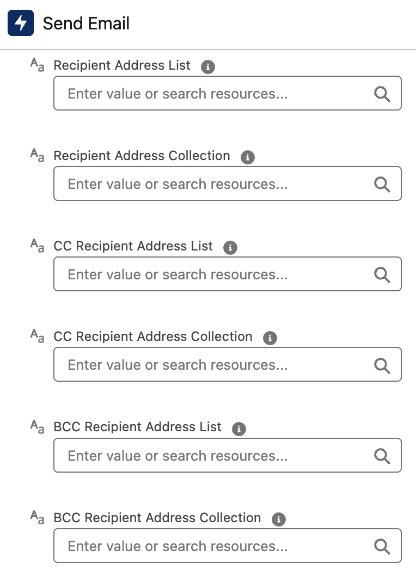
With the Winter ’26 release, these inputs have been streamlined into a single parameter. You can now add all recipients in one place — whether they come from text collections, manually entered email addresses, or variables. The same simplified behavior is also available for CC and BCC fields.
This update makes it much easier to combine static and dynamic recipients without juggling multiple inputs.

7. Direct Access to Created Record Fields
Now, when you create a record in Flow, its fields are instantly available for use. You no longer need to add a separate Get Records step.

8. Heading and Paragraph Styles in Display Text
The Display Text component now supports headings and paragraph formatting, making it easier to structure content for better readability. With paragraph styles, screen readers can generate outlines, enabling users to jump between headings instead of going through all text word by word.

9. Use Static Resource Images in Display Text
You can now embed images in Display Text components using static resources. Storing images this way keeps them consistently available across all Salesforce orgs and Experience Cloud sites. If the image is purely visual and adds no informational value, you can mark it as decorative.


Final Thoughts
The new Flow features in Winter ’26 are more than just minor updates—they’re real time-savers that cut out the busywork and let us focus on creating better experiences. Features like direct access to record fields, simpler email sending, and the ability to add headings and images in display text may sound small on their own, but together they make a big difference.



Muthu Raman
Hi, I'm Muthu Raman, currently working as a Salesforce Associate. I’m passionate about leveraging Salesforce solutions to drive business success and improve user experiences. I’m eager to contribute to innovative projects, enhance my technical skills, and gain hands-on experience in real-world applications. Let’s connect and explore opportunities to collaborate and grow together.
- Muthu Raman#molongui-disabled-link

- Muthu Raman#molongui-disabled-link