



Setup Guide: How to Create an AI Agent Using Flow
Step 1: Purpose of creating the Agent
Before creating an agent, one question that should come to anyone’s mind is, What will this agent do? What specific problem should this agent solve? Will it guide customers through creating a case, share updates on an existing case, or support another business process? Having a clear, outcome-driven purpose ensures your agent is focused, useful, and aligned with real business needs. When you know exactly what task the agent should perform, you can design its actions, data requirements, and flow logic more effectively, creating an AI teammate that delivers meaningful value from day one.
Purpose: We want to create an agent to create cases and help them with the information about their case
Step 2: Org Setup
- Log in to the org
- Click on the gear icon in the right corner.
- Click on Setup
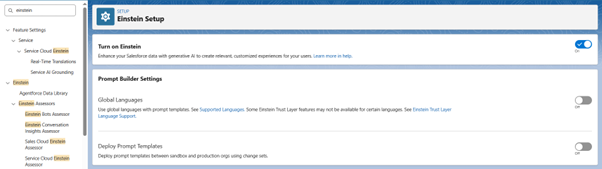
- Click on the Quick Search box, which is in the left corner, and type Agent.
- Click on Einstein Generative AI
- Select Einstein Setup
- Enable “Turn on Einstein.”
- Refresh the tab
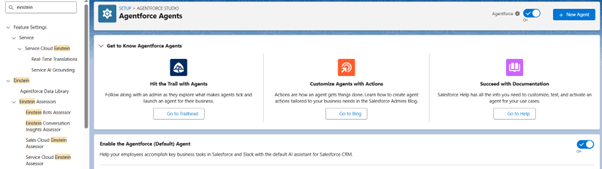
- Click on the Quick Search box, which is in the left corner, and type Agentforce.
- Click on Agentforce Agent
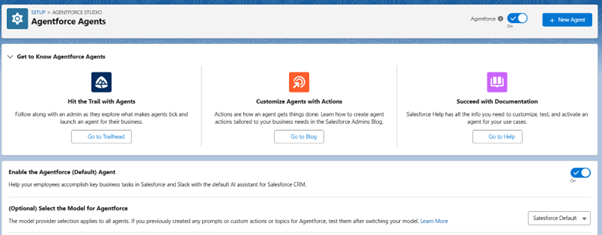
- Enable the Agentforce by clicking on the “On” button in the right corner.
- Refresh the page
- Turn on “Enable the Agentforce (Default) Agent (It allows the user to use the default agent given by Salesforce)
- Refresh the page
Step 3: Create a new agent
- Click New Agent on the Agentforce agent page in the right corner
Step 4: Select an Agent
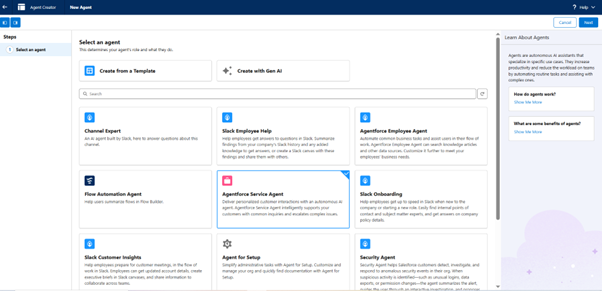
- Create from a Template: Salesforce has some pre-built templates, and the user can choose from them.
৹ Channel Expert: An agent designed to not only answer channel-specific inquiries but also guide users in the context of the Slack or communication space in which they find themselves.
৹ Slack Employee Help: An AI assistant that allows employees to quickly get an answer from Slack history, knowledge bases, and internal documentation.
৹ Agentforce Employee Agent: An internal helpdesk agent that automates tedious steps and provides knowledge to support employees across business functions.
৹ Flow Automation Agent: An agent that summarizes automations and interacts with Flow Builder automations to simplify troubleshooting and understanding of complex flows.
৹ Agentforce Service Agent: A customer-support agent built to manage common customer inquiries, troubleshoot issues, and escalate difficult cases for you as needed.
৹ Slack Onboarding: An agent that guides new employees in the onboarding process by retrieving key company information, contacts, and policies through Slack.
৹ Slack Customer Insights: An insights-driven agent that prepares employees for customer meetings by pulling account details and updates in Slack.
৹ Agent for Setup: A Salesforce admin assistant that allows you to configure, customize, and manage your org by using commands in natural language.
৹ Security Agent: An intelligent security assistant that monitors for unusual activity, explains risk, and provides remediation steps in Salesforce.
৹ Guided Shopping for B2C Storefronts: A shopping assistant that creates a guided conversation to help online shoppers find products, evaluate options, and complete orders.
৹ Agentforce for Guided Shopping – B2C: An AI agent that assists customers with frequently asked questions about products and orders, enhancing the shopping and checkout experience.
৹ Knowledge Space Agent: An agent that queries relevant data sources and provides concise summaries generated by AI for knowledge-based questions. - Create with Gen AI: It uses Salesforce’s AI to auto-generate an agent based on the description provided by the user.
- Select the template that suits your option, like Agentforce Service Agent, which we are choosing.
- Click on Next in the right Corner of the page.
Step 5: Select Options
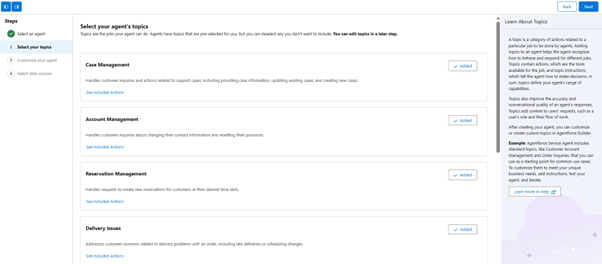
- All options are pre-selected. To remove any option, click on it, and that option will be removed.
- Click on Next
Step 6: Customize your agent
- Fill in the Name, API name, description, role, company, and agent user.
- Click on Next
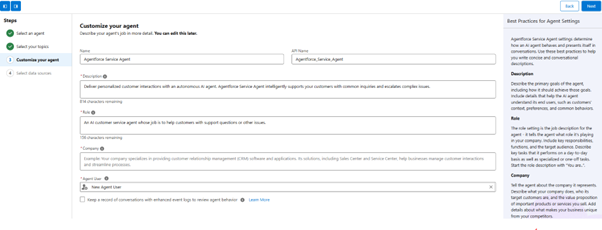
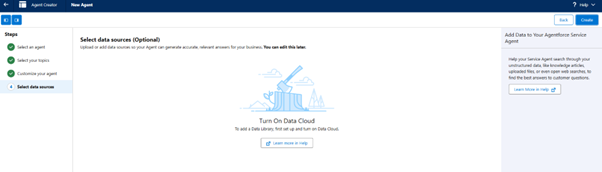
Step 7: Data Source
- Select the data source (If the agent needs to use Data 360, then we enable it)
- Click Create
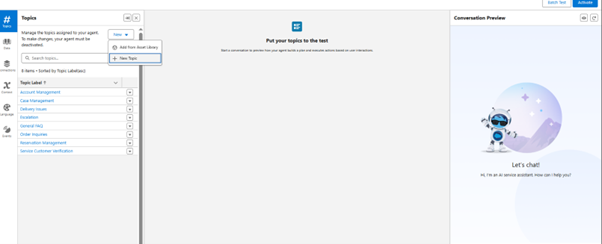
Step 8: Topic Details Selection
- Click on NEW
- Click on New Topic
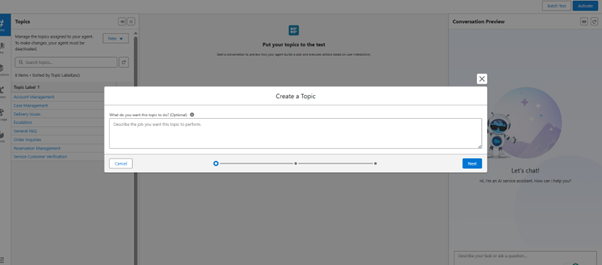
- Fill in the description of the topic, like “I want to create the topic for case creation.”
- Click Next
Step 9: Fill in the topic description
- Fill the required fields like name, API name, classification description, Scope, and Instruction (Salesforce fills the fields according to the description of topics, and it adds the instructions)
- Click next
Step 10: Actions Selection
- Choose an action from the pre-built options, but do not select an action for case creation.
Step 11: Add Flow Action
- Click on Gear Option
- Click on setup
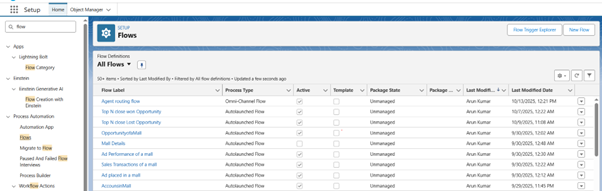
- Select Quick Search and type flow.
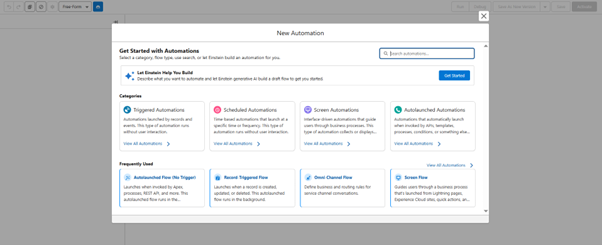
- Select New Flow
- Select Autolaunch flow
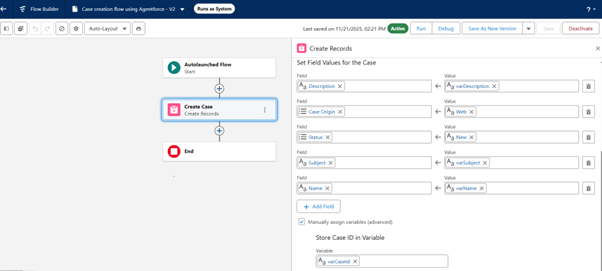
- Create the required flow to fill both the input and output variables that will be required
Step 12: Create an Agent action
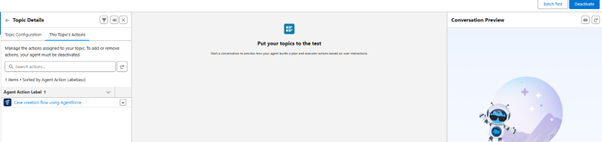
- Select “This Topic action.”
- Click on New
- Select “Create New Action.”
- Select Flow
- Select the required flow for the case creation
Step 13: Set the Instruction for action
- Set the required input that the user has to provide, like name, reason and description, and more.
- Set the required output that the agent will provide, like a case number.
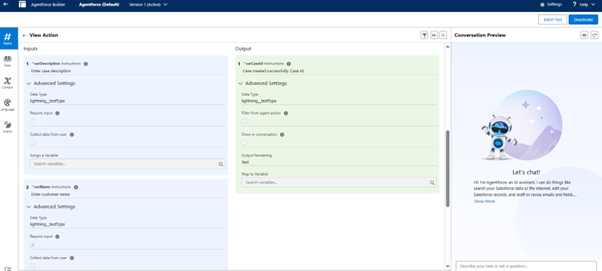
Step 14: Check the Permission Set of the flow
- Click on the Gear Icon
- Select Setup
- Search in the Quick Search box, type permission Set.
- Select Permission Set
- Click to clone a permission set
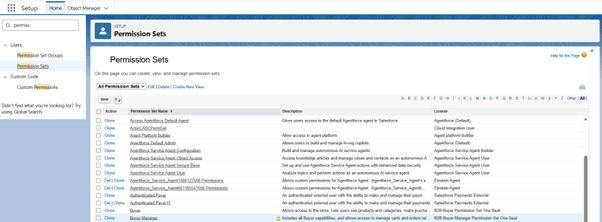
- Fill the Label, API Name, Description, and more
- Click Save
- Select Flow Access and provide the required permission to the flow.
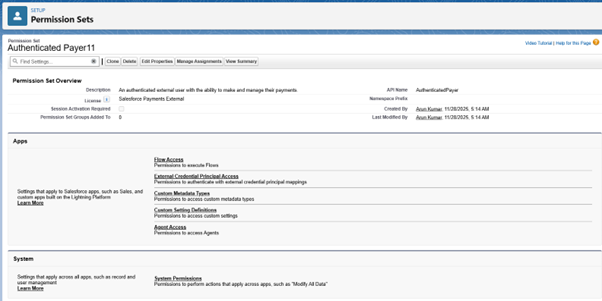
Step 15: Test the Agent
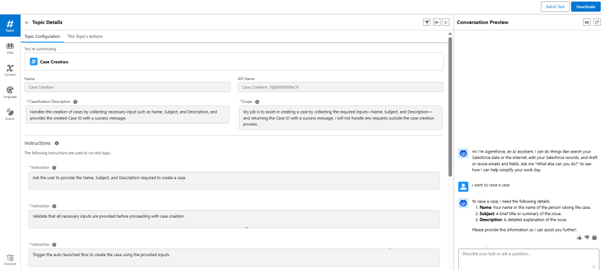
- Type different inputs of the agent that the user can give, and see the output the agent will provide.
- Activate the agent




Akanksha Shukla
Akanksha is a Content Writer at SalesforceTrail.com, contributing educational content that supports Salesforce professionals in learning, growing, and advancing their careers within the Trailblazer ecosystem.
- Akanksha Shukla

- Akanksha Shukla

- Akanksha Shukla

- Akanksha Shukla