When discussing Salesforce security, the first things that come to mind for most administrators are roles, profiles, and permission sets. However, three underrated yet strong security shields work effectively to secure the organization: login hours, IP ranges, and session policies. These security features are not well known, but these three options are compelling and are used to determine who can access the organization, how they can access it, from where and when they can access it, and for how long they are allowed to access it.
Login Hours allows admins to control when users can log in to the Salesforce org, restricting access to business hours. Simultaneously, IP Ranges restrict access to Salesforce, allowing only trusted IP addresses to log in to the organization. Session policies control login time, which is the length of time a user can remain active in the Salesforce org. Together, these underrated tools create an intelligent security perimeter that strengthens the Salesforce org without adding complexity, making them a must-use for every admin who wants to build a safer, smarter environment for the organization.
Table of Contents
What are Login hours?
Login Hours in Salesforce acts as a time-based security shield. Admins can use it to define the exact days and hours during which a user is allowed to log in; it is mostly configured at the profile level. If a user tries to access the org beyond the set login hours, the system automatically blocks login or ends their active session by issuing a warning to them.
Why Salesforce admins rely on Login Hours:
To Prevent Unauthorised After-Hours Access:
Cyber attackers often take advantage of unprotected periods such as nights, weekends, and holidays. If a user’s password is compromised or a phishing attack takes place, login hours can serve as a preventive measure:
- Late-night login attempts from unknown sources
- This helps prevent internal malicious access when supervision is low.
- Engaging in risky business operations outside the organization’s visibility.
Login hours ensure that when a user shouldn’t be working, they shouldn’t have access to the org.
To Enforce Business Working Shifts
Various teams operate during different hours, particularly in BPOs, call centers, and support teams.
The Login Hours ensure:
- Agents work only during approved shifts.
- No logins during off-shifts or overtime without approval
- Operations remain controlled and disciplined.
Login hours can be beneficial in 24*7 environments with rotating shifts, depending on different profiles configured differently.
To Support Compliance & Audit Requirements
Industries like banking, finance, and healthcare face strict regulations, making compliance essential.
- It helps to limit access to office hours.
- Activity logs clearly show legal working periods.
- It helps to ensure sensitive data is not accessed unsupervised.
By providing a way for employers to enforce Login Hours compliance, the Login Hours feature allows employers to demonstrate that access is restricted and closely monitored.
To Manage Temporary or Seasonal Workforce
It is most likely that in any work environment, there is a set of temporary staff, like interns, contact-based employees who shouldn’t have access indefinitely.
Login hours help in:
- Prevents weekend and holiday access
- It limits access to specific timeframes without additional administrative effort.
An organisation can save time by not constantly adjusting permissions.
To Reduce Security Monitoring Overhead
It helps reduce the manual processes required to manage login time. It also reduces the amount of time administrators spend tracking who can log in when. This ultimately reduces:
- Risk exposure during non-operational hours.
- The number of alerts and anomaly checks.
- The quality of the Login History Audit signal.
To Support Global Workforce with Clear Boundaries
Organizations with staff across different time zones can utilize Login Hours to support the localized limits of their employees.
- Each region can have separate profile policies.
- Business operations remain aligned with local working laws.
- Avoids confusion over when access is allowed
What are IP Ranges?
Salesforce implements Login IP Ranges as a Layered Security Control (hardware-based) to restrict access to only users connecting from a Trusted Location. Login IP Ranges help to prevent a significant number of data breaches. Most Data Breaches occur using stolen login credentials created from unsafe Locations.
Why organizations actively rely on IP Range restrictions
They Block Unauthorised Network Access
Even if the passwords are leaked due to some phishing or malware attack, it prevents:
- It prevents Login from Foreign locations.
- It won’t allow access from an anonymous public Wi-Fi.
- It cannot bypass corporate security monitoring.
They ensure that credentials alone are not enough; the network must be trusted, too.
They Protect Remote & Global Teams
In the current hybrid work model, employees can connect from various locations. These IP Ranges are designed to ensure that access is permitted only through:
- Corporate office networks
- Secure VPNs
- Verified regional IP zones
- Approved international locations
This allows for remote flexibility while ensuring security is not compromised.
They Support Regulatory & Compliance Standards
Some of the industries, like defence, pharma, and healthcare, follow regulatory and compliance standards:
- Control where business is conducted
- Track access through secure network boundaries
- Prevent unauthorised cross-border data access.
IP Ranges serve as a tool for ensuring compliance, particularly in government and financial projects.
They Strengthen Identity & Access Management
Salesforce validates the user’s environment, not just relying on login credentials. This helps detect:
- Unusual login geography
- Proxy/VPN spoofing behaviour
- Sudden country switching during a session
It makes it easier to flag suspicious logins and shut down attacks early.
They Reduce Internal Security Risks
An employee’s account can be used by others once after their work hours, especially if:
- The former employee still has access to something they forgot about.
- Contractor or vendor outside of your company’s approved network.
- Internal actors are creating threats against your organisation.
By enforcing who you allow to have access, organisations can eliminate excessive risk.
They Integrate with Zero Trust Security
Salesforce provides the newest practices in:
- Never trust the network; always verify.
- Trusted IPs provide seamless login.
- On an untrusted IP, the verification code is sent, or the access is blocked.
- Risky IP is then alerted, and the session is terminated.
Thus, protecting the data before it loads into Salesforce.
What are Session Policies?
The purpose of Session Policies is to protect and secure your access to Salesforce throughout your entire user session, not only at your login. The Policy monitors the security of a user’s session connection to determine how long, safely, and under what conditions the user continues to have access to their Salesforce account. With the growing number of users working remotely, on multiple devices, and the increasing number of cyber threats, having continuous protection is becoming critical.
Why organisations depend heavily on Session Policies
To Prevent Unauthorised Access After Login
Once the user is logged in on a device, many risks occur, especially if they walk away or leave the screen unlocked. Session policies protect against:
- Unauthorised access from unattended devices
- Peeking or takeover by someone nearby
- Stolen or hijacked browser sessions
Even if a session starts safely, Session Policies ensure it doesn’t end dangerously.
To Control Session Duration & Idle Time
Sometimes users forget to log out; in that situation session times out itself:
- End inactive sessions
- Free up license & resource usage.
- Prevent misuse if the user leaves unexpectedly
This is a major consideration for users who use the desktop in a shared environment such as a call centre.
To Secure Access to Sensitive or High-Risk Data
Some of the actions require extra protection, like payroll, personal health data, and financial approval, as all actions are not the same.
Session policies can be enforced:
- Re-authentication before viewing/editing data
- High assurance session with verification code
- Restricted access on untrusted devices
To Adapt to Hybrid & Remote Device Usage
In today’s fast-paced world, people change devices and networks, session policies detect risk patterns and respond by:
- Forcing re-login
- Blocking continuation
- Adds Multi-Factor Authentication
To Support Zero Trust & Modern Cybersecurity
Salesforce follows the zero-trust principle, meaning never trust, always verify, and session policies are checked continuously.
- Device security
- Network layer trust
- User behaviours
- Session anomalies
Best Practices — How I’d Use Them if I Were Admin Right Now
As someone who’s worked as a Salesforce consultant or administrator, I believe there is a specific way to architect security when using the tools available today.
Define Personas / Profiles Based on Access Needs:
- Set login hours for internal team members, like login hours 9 am to 5 pm
- For remote team members or for the sales team, allow broader hours but restrict them by IP range.
Don’t Use the Entire Internet as An IP Whitelist/Static IP Range
- Avoid wide ranges like “0.0.0.0–255.255.255.255” (even if tempting)—defeats purpose.
- Keep login & session IP ranges as tight as possible.
Enforce IP Check on Every Request and Enable Session Locking
- Turn on “enforce login IP ranges on every request” so sessions don’t survive if the user moves networks.
Combine with Other Security Layers—MFA, Permission Sets, Least Privilege
- These controls don’t replace permissions or MFA—they complement them.
- For high-privileged profiles, apply all layers: strict IP, login hours, session timeout, plus 2FA.
Audit & Monitor Regularly
- Periodically review “who logged in when from where.”
- Adjust IP ranges as networks change, VPN endpoints update,
- Document access policies, especially when onboarding/offboarding users or contractors.
How to Configure Login Hours, IP Ranges & Session Policies in Salesforce
How to Set Login Hours in Salesforce
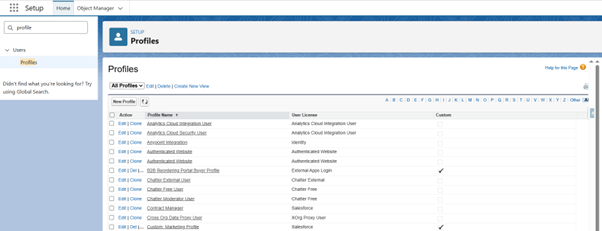
- Click on the gear icon and select Setup
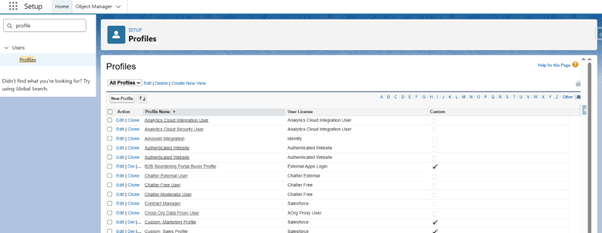
- Click on the Quick search box and type Profiles

- Select the profile you want to control
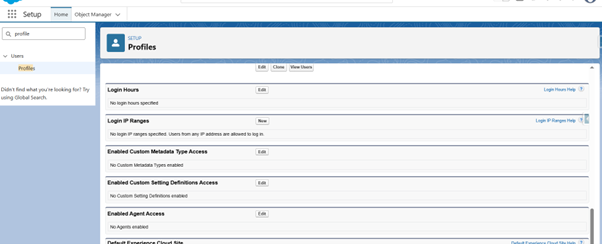
- Scroll down to the Login Hours Section

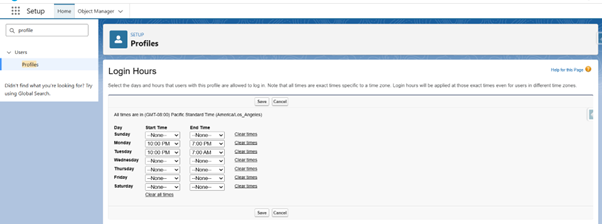
- Click Edit
- Select the Day & Time Range

- Click Save
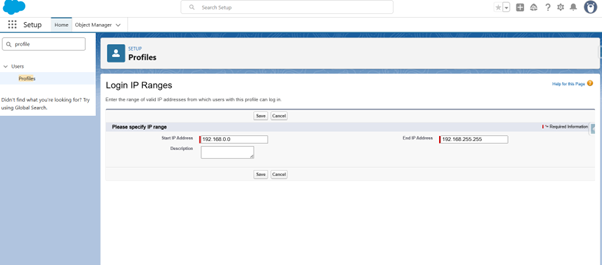
How to Set Login IP Ranges in Salesforce
- Click on the Gear Icon and select Setup
- Select the quick search and type Profile

- Choose the profile on which you want to apply restrictions
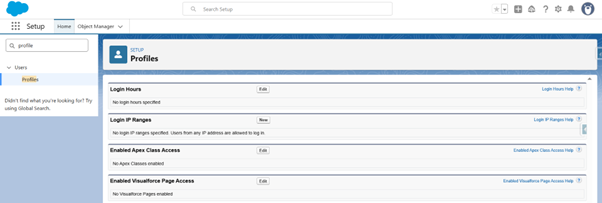
- Scroll down to the Login IP Ranges section

- Click New
- Add Start IP, End IP, and description

- Click save
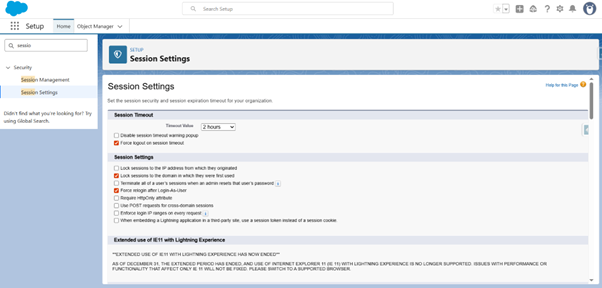
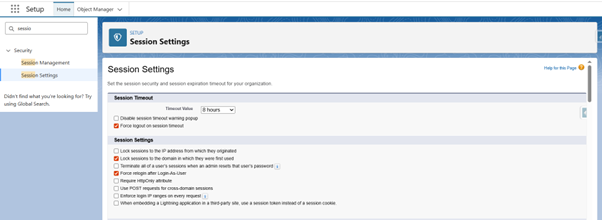
How to Configure Session Policies in Salesforce
- Click on the gear icon and select Setup
- Click on quick search and type Session
- Select Session Settings

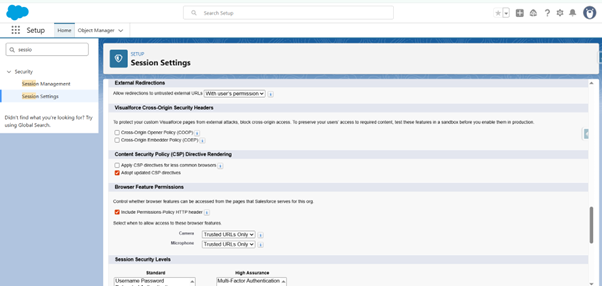
- Review and enable settings like:
৹ Session Timeout

৹ Lock the session to the IP from which the user logged in
৹ Require secure connections (HTTPS)

o Enforce login IP ranges on every request
- Save the policy
Final Conclusion
Administrators may think that login hours, login IP ranges, and session policies are not their top tools, but these settings inside the orgs form the basis for strengthening security. Together, these settings ensure that only those who need access—that is, the authenticated user—can access the org at the right time, that is, during their respective working hours, from the right location using registered IP addresses, and can remain logged in to the org as per the time frame work.
Most Reads:
- Salesforce Business Rules Engine (BRE) Explained: Smarter Decisioning Beyond Apex & Custom Metadata
- TDX 2026 Call for Participation Is Live: Everything you Need to know
- Build a Dynamic, Reusable Lightning Datatable in Salesforce LWC (With Metadata-Driven Columns, Search & Pagination)
- Salesforce Marketing Cloud to Agentforce: The Future of Marketing Automation
Resources
- [Salesforce Developer]- (Join Now)
- [Salesforce Success Community] (https://success.salesforce.com/)
For more insights, trends, and news related to Salesforce, stay tuned with Salesforce Trail
- Akanksha Shukla#molongui-disabled-link
- Akanksha Shukla#molongui-disabled-linkDecember 23, 2025
- Akanksha Shukla#molongui-disabled-link